ShapeMaster User Guide

View command buttons are made available dependent on the selection made on the related command ribbon.
The highlighted button designates the Active view.
List changes the display mode of the active pane to List View providing a listing of all the items currently on the drawing as well as library items which have no visual representation in the plan and items which do not represent any physical items such as freight etc, allowing pricing information to be added independent of any specific cabinet.
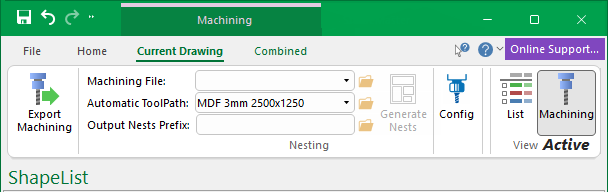
Machining changes the display mode of the active pane to allow selection of Machining options, integrating EzyNest directly into CabMasterPro.
Click here to view active Machining button
The following shows the Machining command ribbons made available when the Machining is made active.
2D changes the display mode of the active pane to a top-down view of the shape in the Current Editor.
3D changes the display mode of the active pane to a three-dimensional rendered view of the drawing and provides 3D Display Tools.
Click here to view active 3D button
The following shows the Display command ribbon made available when the 3D button is made active.
The status bar is displayed at the bottom of the ShapeMaster application window. It includes notifications which can be turned on/off using the right click menu as shown below. Above these are Page tabs.

The following is a summary of available features - click on the links for full discussions.
| Indicator | Description |
|---|---|
| Notifications | Describes actions as these are performed. For example:  |
| Paper | The position of the mouse cursor in Paper Space co-ordinates |
| Model | The position of the mouse cursor in Model Space co-ordinates |
| Delta | Difference in X and Y of mouse cursor from last mouse click position |
| Dist | Distance and Angle of mouse cursor from last mouse click position |
| Messages | This is either  green or green or  yellow warning of errors - clicking this button will display a list of errors which can be viewed/emailed to support if requested. yellow warning of errors - clicking this button will display a list of errors which can be viewed/emailed to support if requested. |
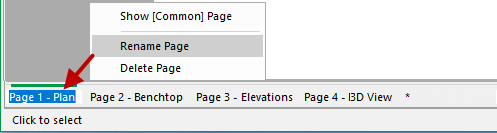
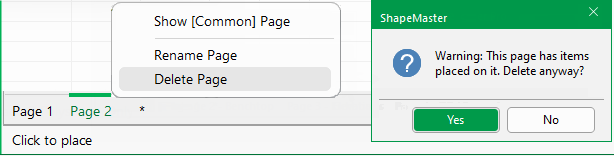
The Page tabs are located above the Notifications and each page has a name. The current page is indicated by a green line above the tab, in this example "Page 1". Pages can be renamed or deleted. (This can also be achieved using the Breadcrumbs Bar - click on image to see example).

Click to view an example of the use of page scroll bars in Split window mode
The page scroll bars  at the far left only work when the drawing window is minimised to the extent that all the available page tabs don't fit. When the scroll bars are available, the applicable arrows are darker e.g.
  means that you can scroll right.
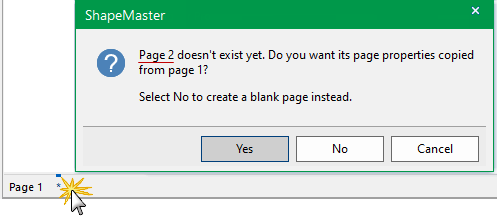
Clicking on the asterisk will allow you to create new pages. A dialog will be presented allowing you to select:-
- Yes: Copy page properties from current page to new page.
- No: Create a blank page.
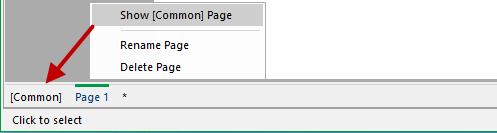
Right clicking on a page tab provides a menu selection, which allows you to "Show [Common] Page". This is useful when creating templates as objects placed on page zero appear on every page.
To rename, select the required page and use the right click menu to select "Rename page". Then simply type in new name.
To delete, select the required page and use the right click menu to select "Delete page". A warning message will be presented to allow you to confirm if you want to continue with this command or not.