ShapeMaster User Guide
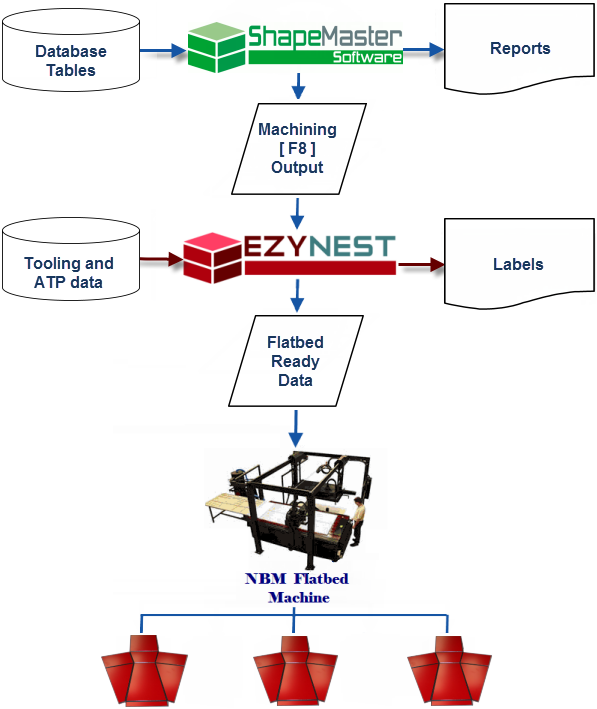
ShapeMaster Software allows you to create a collection of machining files e.g. DXF format etc. These files contain machining information for each component in the current drawing (or list) which is configured to output machining data. And if you are using nested based manufacturing, it integrates seamlessly into EzyNest and EnRoute, which optimises the shapes onto sheets ready for production.
Pictorial Explanation
Users can create their own shapes using the powerful machining options or use the pre-prepared library and many administrative facilities that comes with the product. Instead of dealing with complex CNC programming environments, you create the machining data from a user friendly environment. Elements of the design are changed by clicking on checkboxes and drop lists, and typing in required sizes and quantities. Then ShapeMaster takes care of generating the precise blending arcs and lines to create the design, and outputs it, in seconds, ready for machining.
See Tutorials and Machining FAQ's for HowTo's specifically related to processing jobs from AMS applications and trouble shooting.
With the latest version of ShapeMaster, you can setup your CNC Configuration (i.e. required ATP, Preferences and Driver Selection options) and Generate Nests directly in your application, without the need to access EzyNest directly.
CNC Config, accessed using the  command button on the Machining View [Current Drawing] command tab, replaces the need for accessing the ATP in EzyNest as well as allowing you to set required Preferences and Driver Selection options.
This provides a simpler method of setting up the configurations required to process parts contained in external DXF geometry files and process large numbers of parts as part of a Nested-Based Manufacturing (NBM) process.
CNC Config was introduced with ShapeMaster v12 and to use this facility EzyNest MUST NOT be running, as CNC-Config will adjust its' files, which cannot be done if EzyNest is open.
When DXF files are created in the design applications, different types of machining operations are separated onto different layers in the DXF files. The geometry on all the Layers in a file represents a single part, and all the machining (such as drilling, milling and cutting) that is to be performed on that part. In order to process the part, the ATP needs to be instructed about what operations, called Strategies, should be applied to each layer of geometry in each DXF file.
When EzyNest processes a part, it uses this mapping of toolpath strategies to apply toolpaths to each piece of geometry in the part. After all the parts have been imported and have had toolpaths applied, they are nested together onto sheets and then machining output files are created based on the ordering preferences defined.
After the desired parameters for Layer/Strategy mapping, ordering and output are defined, they can be saved in an ATP configuration file. Then when it is time to process another job the ATP file can be opened to recall all of the desired settings. As few as three mouse clicks can be required to process a job that may contain dozens of parts.
Whether you are using the CNC Config (from within ShapeMaster) or the ATP (from within (EzyNest), the steps involved in setting up are:-
See also Setup Sheet Size and Part Spacing in ATP as each ATP file holds many settings for EzyNest to control how your job will be machined.
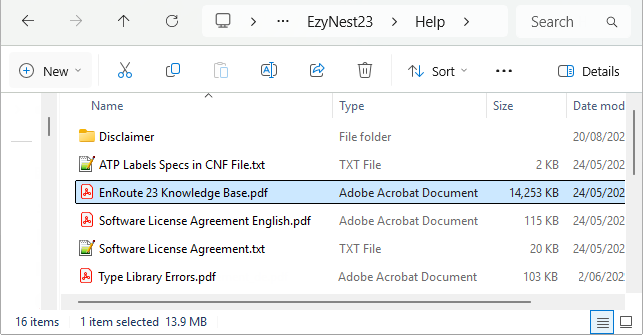
Help documentation provided by SAi is also available in the Help subfolder of your EzyNest/Enroute software.
Shown below is the EnRoute 23 Knowledge Base PDF which is also applicable to EzyNest 23 software.
The Type Library Errors PDF is also useful for Troubleshooting.
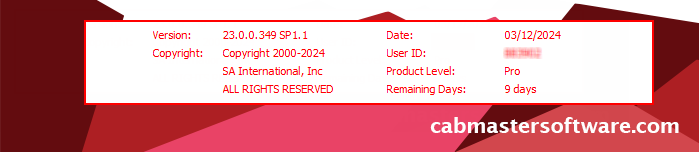
Locating your User ID and Product Details
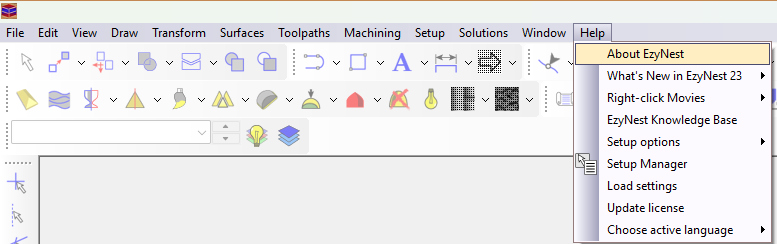
The User ID and Products Details are displayed on the splash screen when EzyNest is opened or using the Help > About, as shown.
As you can see, there are also a number of other helpful resources available from this menu.
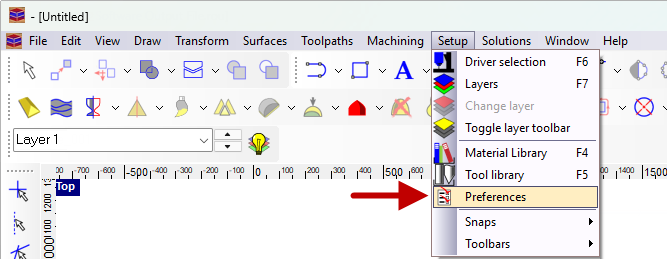
The behaviour of EzyNest can be adjusted through user preferences.
To open the Set Preferences window, select Setup > Preferences
If a 'single stroke' Hershey font is required for text to be engraved inside the part, then ensure that...
- in CabMasterPro, the Machine Vector Font checkbox is turned ON which allows the use of a pen in one of the tool-holders to "write" directly onto the machined parts.
- The pen in the spindle option is still recommended for Tekcel CNC Routers and a couple of CNC Manufacturers.
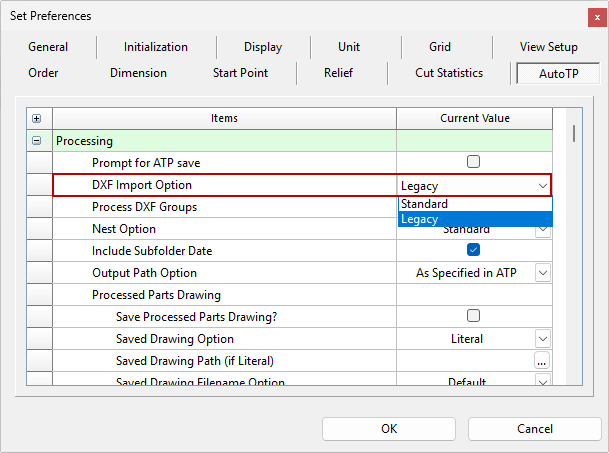
- in EzyNest, to correctly import DXF's, the DXF Import Option needs to be set to Legacy on the AutoTP tab of Preferences, as shown.
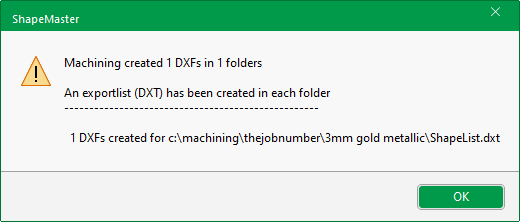
Batches of files are generally prepared directly from ShapeMaster which includes nesting, applying tooling and preparing CNC files for the machine. This is done by simply exporting the machining data for the currently open job. See topic on Machining View Current.
Simply take note of the DXT files created and where they are located as you will use a DXT batch file to prepare your job for the CNC machine.