ShapeMaster User Guide
Available from the File menu > Options or use Keyboard Shortcut F10.
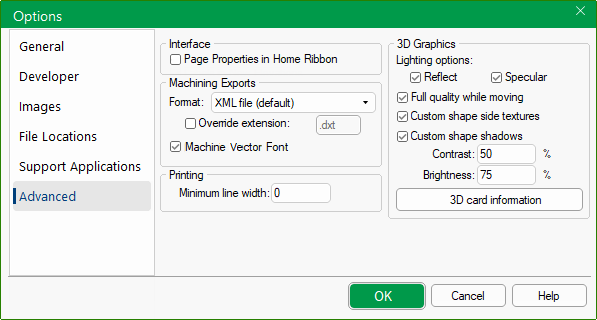 |
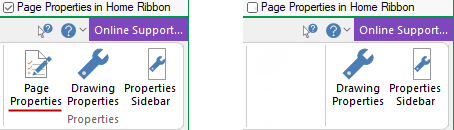
Page Properties in Home Ribbon check box is by default turned off on the Home tab, as shown.
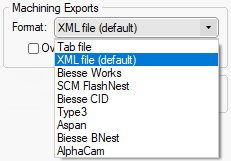
Batches of files are generally prepared directly from ShapeMaster which includes nesting, applying tooling and preparing CNC files for the machine.
A collection of machining files will be created typically in DXF format (depending on the machining configuration) - the file extension of these file are by default .DXT (used to prepare your job for the CNC machine).
This feature describes the font being used to engrave text on a part and outputs the font on a part as a single line for use on a CNC with a pen or engraving on and the final product.
Example
Most fonts will produce patterns that require a lot of tool activity to produce, as they have a width to each character.
 the checkbox is ticked by default, for ShapeMaster using a simplex "Hershey" font vectorising each character generates.
Example :
You will also need the Legacy setting for DXF Import Option, to correctly import DXF's.
To do this, ensure that the ATP Preferences in EzyNest is set correctly
 if the checkbox is unticked, then...
- The text is sent straight to the DXF for the part as a text string.
- This is much more compact, and is typically used when the text for each part is handled by a CNC labelling device.
- In this case, there is no need to vectorise the individual text characters.
This feature can be used with any of the CabMaster Software™ products.
Minimum line width allows for a value to be entered to set the minimum # of pixels that any line will be drawn when printed from ShapeMaster. Applies to all lines being drawn on the printed page, irrespective of whether they are section outlines, dimensions etc. To make printed lines darker/thicker, increase the value until satisfied with your test print.
Click on this button to get information concerning your currently installed 3D Hardware Accelerator.