In This Topic
Keyboard shortcuts can be useful for saving time on some of the more common events. All keyboard shortcuts have an alternative method of accomplishing them without knowing the shortcut, but it can save a lot of time if you learn the shortcut keys that are available with your ™ product.
This topic discusses all available keyboard shortcuts.
 click on the keyboard shortcut on the following chart to quickly locate more detailed information on the most used keyboard shortcuts.
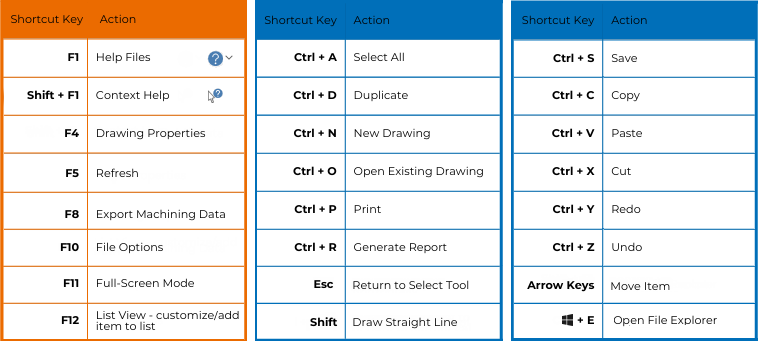
Function Keys

- F1
Loads Help documentation.
-
Shift+F1
Context Sensitive Help is a quick and easy way to find relevant help when you are working in
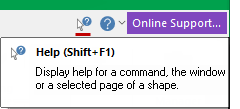 The shortcut only works with main window commands.
When help is required in a use the  icon in the title bar before clicking on the property sheet.
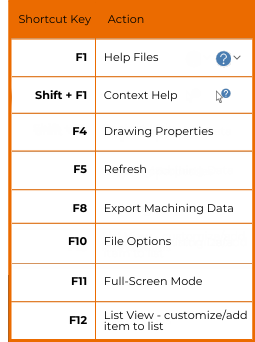
- F4
Loads Drawing Properties.
- F5
Refreshes the window and optionally recalculates all shapes.
- F8
Exports Machining data.
- F10
Loads Options page.
- F11
Enters and exits the full-screen mode i.e. toggles the Full Screen option.
-
F12
In List View, this has a dual purpose when a cabinet/item is selected.
- Press F12 to customise the shape.
- Same as using the Cabinet Tool command button.
- On completing your required amendments, press F12 again to add to list.
- Same as 'Add from Library' button.
Ctrl Keys
- Ctrl + A
Select All. Usually applies to text, but in selects all objects on the page.
-
Ctrl + C
Copy selected object to the clipboard. The selected object is not deleted, but the previous clipboard contents are replaced.
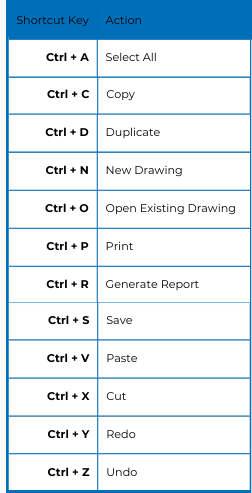
- Ctrl + D
Creates another copy (duplicate) of the selected item.
- Ctrl + I
Select items (including dimension lines) in the sequence placed on drawing.
- Ctrl + N
Create a New document (a document in is a drawing/job).
- Ctrl + O
Open an existing document.
- Ctrl + P
Print the current document.
- Ctrl + R
Generates a Report.
- Ctrl + S
Save the current document. Prompts you for a name if it does not already have one.
- Ctrl + V
Paste from the clipboard into the current application.
- Ctrl + X
Cut selected objects or text to the clipboard. The selected object is deleted, and the previous clipboard contents are replaced.
- Ctrl + Y
Redo an operation that was just undone.
- Ctrl + Z
Undo the previous operation.
- Ctrl + dimension text:
To move a dimension text manually, hold down the 'Ctrl' key and select individual text dimensions. Then drag text to required position.
- Dot

This opens the Precise Movement Input dialog, allowing accurate placement by X,Y coordinates or by angle. This dialog works almost everywhere e.g. machining points, poly selections. Simply begin by dragging a selected handle on a placed item.
- Shift
To draw a straight line, hold down the Shift key while drawing.
- Arrow keys and + or -
With the item being drawn as the current selection, you can also move or rotate it using the keyboard.
- Arrow keys to select Text:
Select text by holding down [Shift] and then pressing an arrow key.
- Esc
Press when another command or tool, such as 'Insert > Label' or 'Home > Shape Tool', is selected during drawing and this returns you to the Select command. Press during editing of an entry box in a dialog, and this reverts to the unedited contents.
 + E
+ E
Opens Windows File Explorer.
To display at of a item/shape...
-
after placement , double click selected item.
- Background displays in light grey.
- Same as Format... from rclick menu.
-
before placement, double click on the Shape Tool command.
- Background displays in blue.
- Same as Format Tool... from rclick menu.
