
ShapeMaster User Guide

The Select command button is available when in Editor mode i.e. Current Item Editor or Machining Editor.
When Select is turned ON, it allows you to highlight objects by clicking on them individually or select multiple items by clicking on a blank area near items for selection and dragging the mouse to form a box. Any objects inside or touching the box will become selected (see Multi Select discussed below).
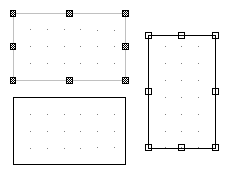
Before selecting an object, make sure that you are turn on the Select command. Objects on the page will display their handles when you move the mouse over them (called highlighting). Handles are small squares on the corners and midpoints of objects that allow you to snap them neatly with other objects (see discussion on Snap). When an object is selected, its handles appear filled in.
The image here shows three simple shapes - the top one is selected, the one on the right is highlighted (by moving the mouse over it), and the bottom one is not selected or highlighted.
Once an object is highlighted (by moving the mouse over it), you can select it by clicking it once with the left mouse button. If two objects overlap at the mouse position, the one on top of the vertical order will be selected.
There is the ability to select one or more (multiple) items at the same time.
Simply enable the Select command and then click and drag the cursor over the items that you want to select.
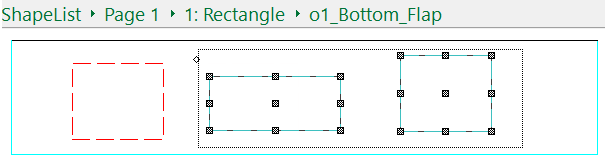
Click to view another example
This method can be used to select and move machining e.g. drill holes. You also use in conjunction with the copy/paste commands.
The Select Into Tool option is accessed via an Item Menu and is used when you have formatted a shape in the drawing and want to place another shape with the same characteristics. If you have placed other shapes in between the customisation of a shape, the changes will be lost.
 activated (selected), right click on a customised hole previously placed.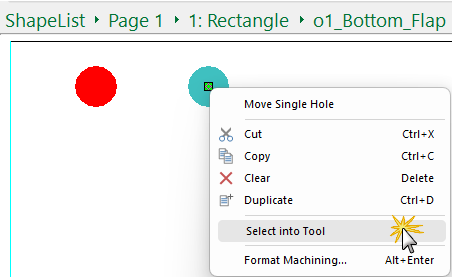
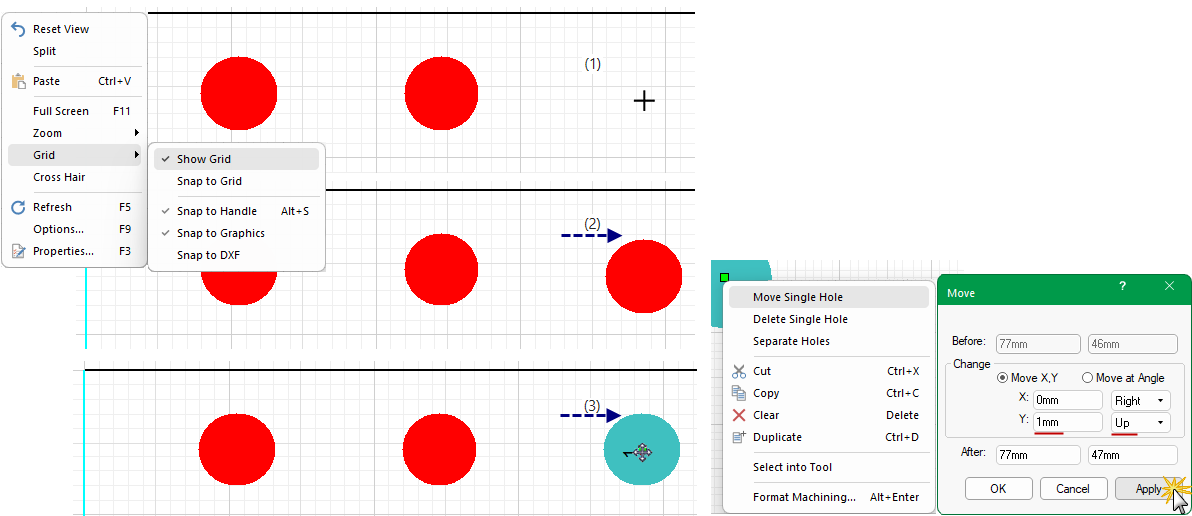
You can also use the Keyboard Shortcut Ctrl+D to create a Duplicate of the selected item.
Be aware that using this method, the new copy will usually be in exactly the same position as the original, so you may have to move one to see both copies.