ShapeMaster User Guide
The term for changing the magnification is 'zooming'. You can zoom in to make objects appear large and to reveal more detail, or zoom out to see a larger portion of the plan.
When in 2D view, the Zoom commands can be accessed by right clicking anywhere on the drawing page.
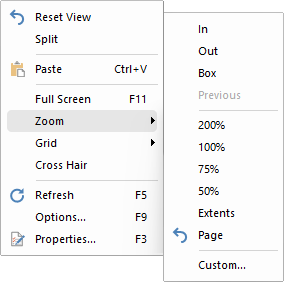 |
To locate information about any command,  click on the area of interest.
To zoom a 3D view use the mouse scroll or the 3D Navigate commands.
Increases the magnification of a drawing in plan view. When you select Zoom In, the cursor will change to a magnifying glass. When you click this on the drawing plan, the view will zoom in centred on the point that was clicked. Click the mouse repeatedly to zoom in further or click the Zoom In command again to regain normal mouse control. Note that Zoom In will only work in plan view; to zoom a 3D view use the Zoom 3D commands.
Decreases the magnification of a drawing in plan view. When you select Zoom Out, the cursor will change to a magnifying glass. When you click this on the drawing plan, the view will zoom out centred on the point that was clicked. Click the mouse repeatedly to zoom out further or click the Zoom Out command again to regain normal mouse control. To zoom in a 3D view, use the Zoom 3D commands.

Magnifies an area of a drawing in plan view. To specify the area to zoom in on, draw a rectangle (box) with the mouse by clicking and holding the button, then dragging the pointer to the far corner of the area. When the mouse button is released, the view will zoom in so that the contents of the box fill the pane. To zoom in a 3D view, use the Zoom 3D commands.

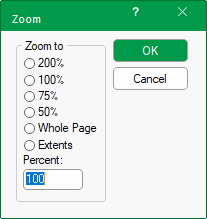
Magnifies a drawing in plan view to a preset value. A zoom value of 100% shows objects as big as they will appear on a printed page, and the others are relative to this. 200% will be twice as magnified as 100%, whereas 50% and 75% will show more of the drawing page.

Changes the magnification of a drawing in plan view just enough so that all the objects on the page fit into the view pane.
Resets the view to Full Page i.e. changes the magnification of a drawing in plan view so that the entire page fits in the viewing pane.

Displays a dialog from which you can select a preset zoom level or enter a percentage value.
Clicking OK makes the current plan view pane zoom to that value.