ShapeMaster User Guide
Available from the File menu > Options or use Keyboard Shortcut F10.
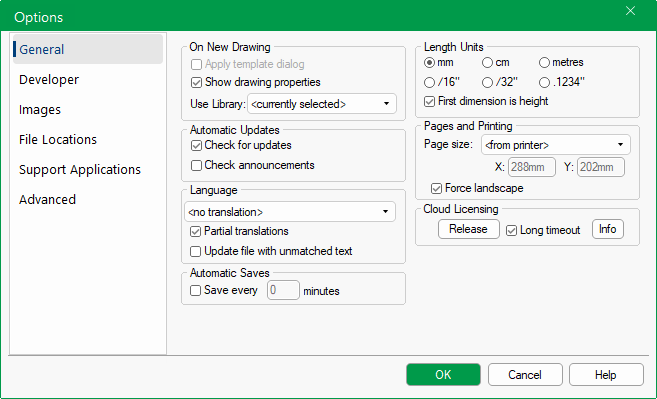 |
 click on the area of interest on image above.
These two checkboxes control what is automatically displayed on opening a new drawing/job.
Apply template dialog - This option is greyed out as it is not applicable with ShapeMaster.
Show drawing properties - If enabled, will automatically display Drawing properties on opening ShapeMaster to allow you to override the global defaults set in the Catalog properties for the current job.
Allows you to specify the default library when starting ShapeMaster Software. This will ensure the correct library is loaded on each startup.
If Check for updates is enabled, ShapeMaster will silently attempt to contact the CabMaster Software™ website every time you start the program. It checks if any later versions of ShapeMaster are available and informs you if there are.
Check announcements does not tell you about new versions of the software, but does let you know if any important ShapeMaster announcements have been made.
Translations are a fantastic way to personalise the terminology within ShapeMaster Software. You can literally change any word to something different.
If you are not familiar with it, please speak to our Support Team.
A translations file contains text that can be translated for the interface of the application. Each line corresponds to one piece of text. Translation files can be used to change the wording for a small handful of terms e.g. if you want to localize terminology [color/colour]. Or it can be used to change the language display e.g. English to Chinese.
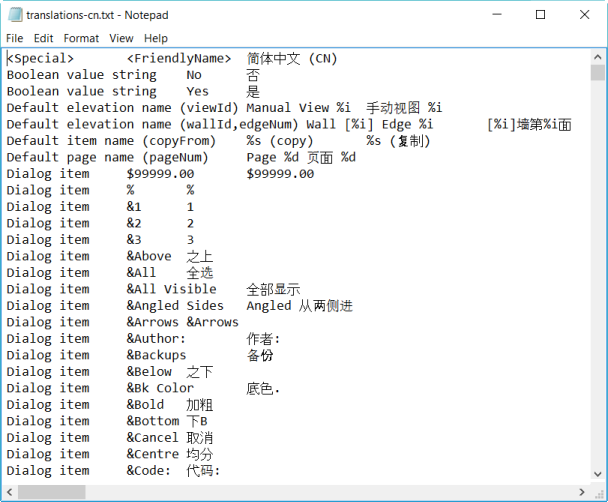
There are 3 tab separated fields per line.
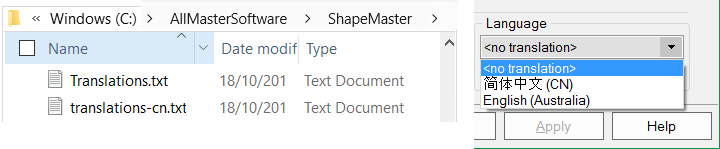
A line, where the first field is "Special" and the second is "FriendlyName", defines the name of this language within the dropdown box on the options page. The optional "Special" line provides a friendly name for selecting this translation file manually.
All files within the ProgramFolder, whose names start with "translations" will be recognised as translations files, as shown below.
Example Translations Files
Translation text file in ProgramFolder.
Example: Translated into Chinese
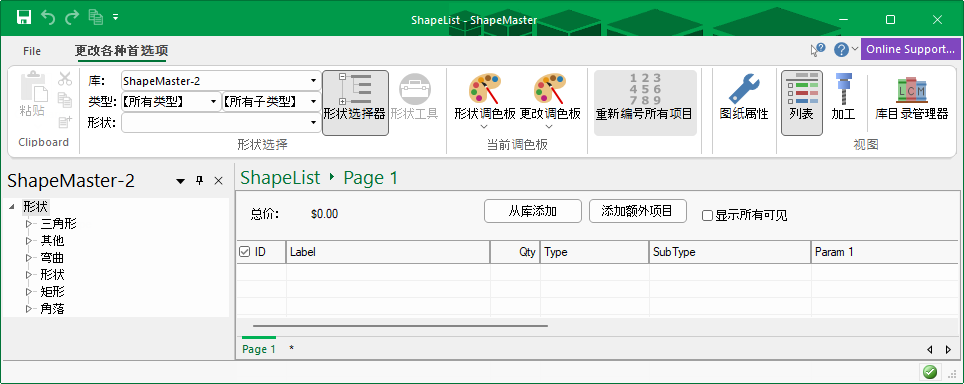
The following example shows the command ribbon translated into Chinese.
Result when selected as language option.
This updates the translation file with any new pages or text that haven’t previously been used.
The AutoSave feature can be turned On/Off. If turned ON, this handy Autosave feature automatically saves your drawing at the specified time interval, and can be a life saver if your computer crashes. Use the text box to specify a time in minutes, or enter zero to disable autosave. The only reason you would want to disable this is if saving a drawing takes too long and interrupts your work.
To ENABLE this you MUST do a real Save at least once.
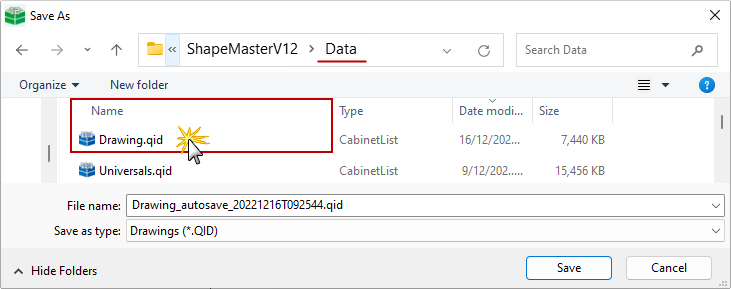
Autosave drawings have temporary names and a maximum of two (2) temporary files are kept. (The oldest files keep deleting and both temporary files are deleted when you save and exit normally).
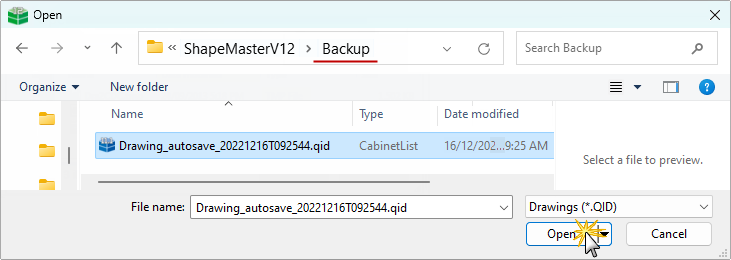
To recover an auto saved drawing, look in the "Backup" folder for the most recent file to recover.
And with Autosave turned on, you'll see the naming of the autosave files as they keep saving into your Backup subfolder. If instead you use task manager to kill ShapeMaster, then when you restart and load the drawing it will realise there's a later drawing automatically saved and offer to restore that instead for you. If ShapeMaster exits abnormally e.g. if you use task manager to 'End Task' for ShapeMaster, you can recover the drawing at its last autosave by following these steps:
Backup folder
Data folder
Select which units of measurement will be used throughout the program: for component sizes, dimension lines, etc. The two most common settings are millimetres and inches.
Release: To release a license, click on the  button to revoke your cloud license from computer.
Long/Short timeout: Cloud license times out while Offline.
: Short timeout - Unchecking this option will enable "short" (30 minute) checks which ensures that after this short delay you can forcibly reassigned your license to a different PC. Useful if you want to work on a different PC e.g. at home instead of the work office.
: Long timeout - Checking this option will enable a "long" (7 days) delay. This means that you will only have to be connected to the internet once every 7 days, allowing you to work offline in between times. (Useful if you have a poor or intermittent internet connection). The downside is that you will need to manually "Release" if you want to reassign your license to a different PC.
An internet connection is required to acquire, release or change your timeout option.
INFO Cloud License Timeouts
For a full discussion, see Cloud2 License Activation & Release which includes Error Solutions.