Cloud2 License Activation & Release
In This Topic
These instructions are relevant for ™ products.
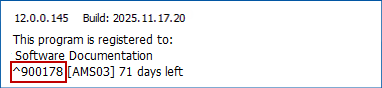
A Cloud2 Licence will have an ID Number and an Activation Code.
The ID Number will be a six digit number, typically beginning with 9 and is displayed on the splash screen when starting .
The Activation Code will be a series of numbers and letters, similar to the following (this is not a real activation code):
249G24NGH-P4IG-B9GH-YB5E-D623MDCBV58I
Only one Cloud2 licence (for each ™ product) can be used on one computer at a time.
Save this activation code for future reference!
The first time you run ShapeMaster, (or after reinstalling), before applying the Cloud2 activation code, one of the following messages will appear...
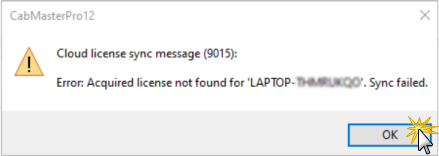
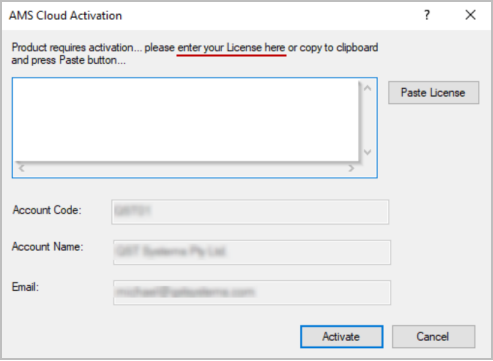
After you click OK, the next dialog will appear...
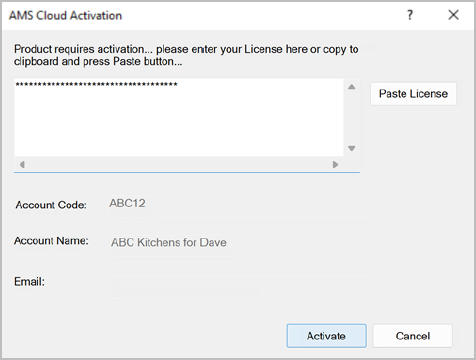
- 'Paste' your Activation Code into the white edit box and click 'Activate'
If you have successfully activated, you should see the Splash Screen for .
If you have an activation code encrypted and remembered in the registry, then the dialog will look like...
If you receive any error messages, please refer to our Error Solutions below.
Before Releasing the Cloud2 Licence, make sure to always save and close the drawings you are working on. Then start a new, blank drawing in .
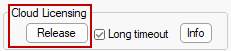
To release a Cloud2 License - from the File menu, select Options > General page [or use Keyboard Shortcut: F10]
Click to Expand
Click on the Release button, shown above, and you will be warned that the license will be removed and will shutdown.
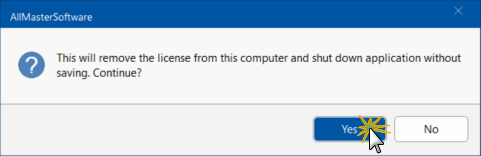
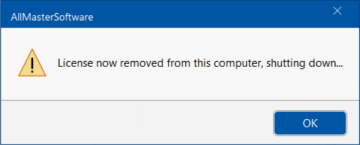
Click Yes and another message will confirm that the license has been released.
Next time you go to Activate (as per above), the Cloud2 Activation Code will be remembered and be displayed in the Activation dialog.
Version 12 and later: The Activation code will appear as a series of stars, to ensure that it cannot be copied.
Short Timeout requires a stable connection to the internet, as the Licence will be checked every 30 minutes.
Untick the 'Long timeout' check box to enable.
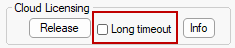
Click to view Info message
If you disconnect from the internet while using with Short Timeout selected:
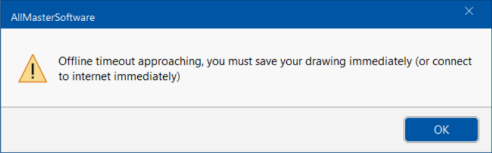
- After 30 minutes, you will get an error message informing you that the 'Offline timeout' is approaching.
- This is to prompt you to Save the drawing and connect to the internet.
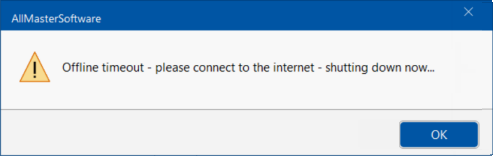
- Following this, there will be another popup stating that the 'Offline Timeout' has been reached and will shutdown.
- When this happens the drawing will not save - will close immediately.
- After connecting to the internet, you can start as normal.
If is not used within a 30 minute window, then the licence can be applied to another computer without needing to release the licence manually.
Only one licence can be applied to one computer at a time. There is a 30 minute period before the licence can be applied to another PC without removing the licence.
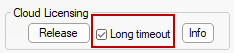
Long Timeout means your computer only needs to be connected to the internet once every seven days. This means that if you connect to the internet on Monday and open - then you can disconnect from the internet and continue to use without internet access until the following Monday.
Tick the 'Long timeout' check box to enable.
Click to view Info message
If you do not connect to the internet within the 7 day period...
- You will get an error message informing you that the offline timeout is approaching.
- This is to prompt you to Save the drawing and connect to the internet.
- Following this, there will be another popup stating that the 'Offline Timeout' has been reached and will shutdown.
- When this happens the drawing will not save - will close immediately.
- After connecting to the internet, you can start as normal.
If you don’t connect to the internet in the 7 day period and ShapeMaster is closed - when you go to start , you will see the following error:
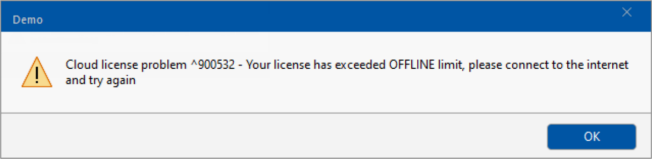
To re license , connect to the internet and run .
Error: Cloud License Reg Message
If you get an error similar to the below and it shows PC SyncTime
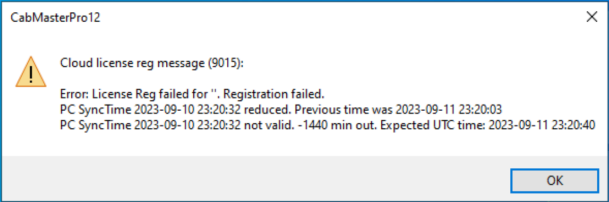
- The clock on the computer needs to be synchronized
- In Windows Date & Time, turn on “Set the time automatically”
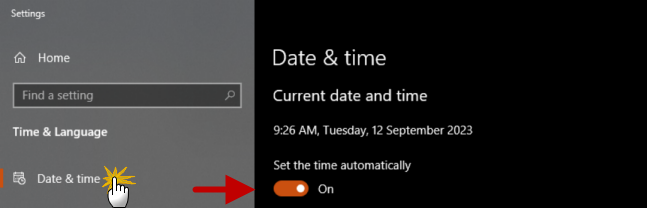
Click to Expand
If you get an error similar to the below and it reads 'Please provide a valid Activation Code'...
- The Activation code you are using may not be correct.
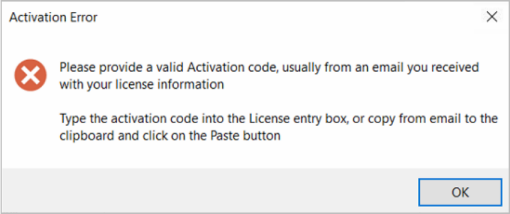
Contact Customer Support and inform them that you need your activation code.
Error: Offline Message
If you get an error similar to the one shown below, ensure that the current TLS is active in Internet Options.
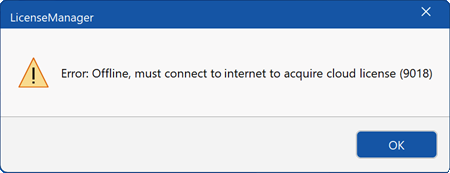
- Select 'Internet Options' in the control panel, as shown below.
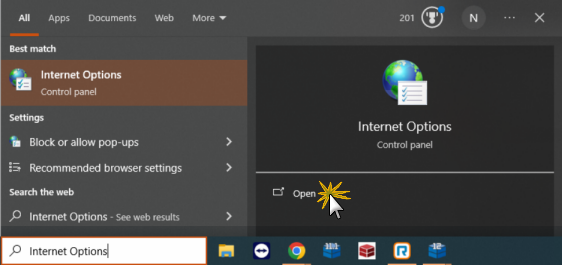
Click to Expand
- In Internet Options click on Advanced tab and scroll down to ensure that the current TLS is enabled.
- If SSL is enabled, untick this checkbox, as shown.
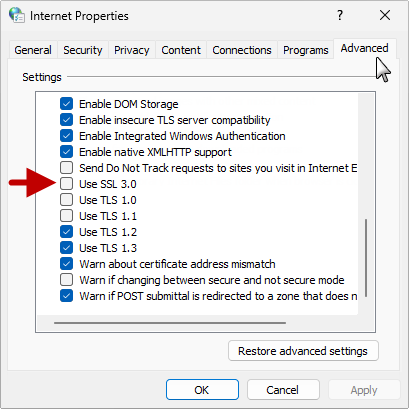
SSL 3.0 is superceded by TLS 1.0 then 1.1, 1.2, 1.3 in succession. Each one supercedes/replaces the previous one and once the current TLS is turned on, things should work.
As at 2025 TLS 1.3 has been around for over 5 years and is the minimum recommendation these days by Microsoft and Amazon.
See website : https://aws.amazon.com/compare/the-difference-between-ssl-and-tls
If you continue to experience issues with licensing with Cloud2, please contact Support.
See Also
Installation and Licensing