ShapeMaster User Guide
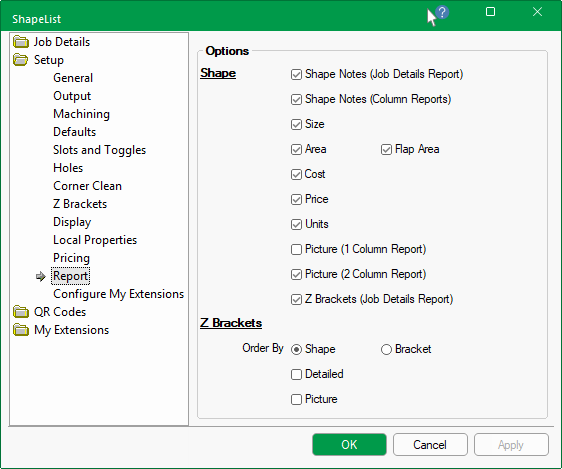
The Setup > Report page of the Catalog/Drawing Properties allows reporting preferences to be customised.
There are currently four types of reports that you can choose from File menu.
To help you determine the best way to customise your report, see the examples below.
For pricing to report correctly, a number of page options need to be enabled - see Pricing Tutorials for more on these requirements.
Reporting is dependent on the options selected. However, it is acceptable to enable all the Shape options.
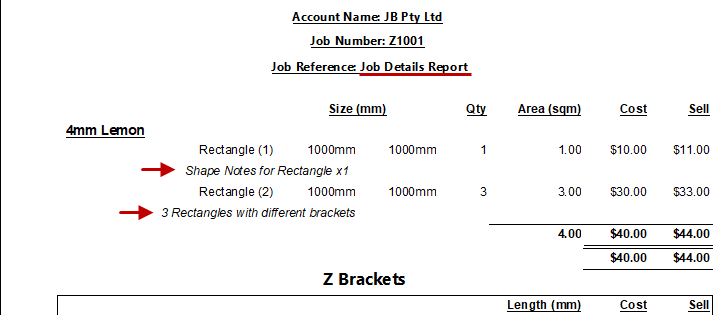
The Notes entered on the Shape > Settings page of the selected shape can be printed on the report by enabling the applicable option.
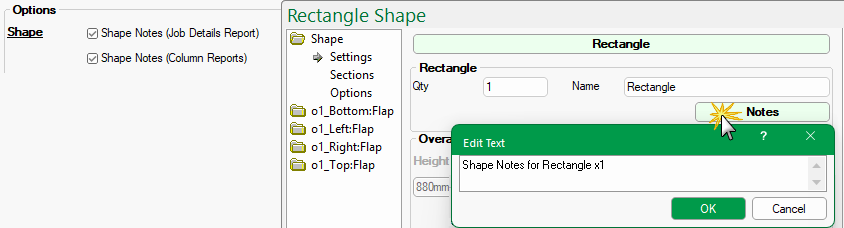
Example of Shape Notes (Job Details)
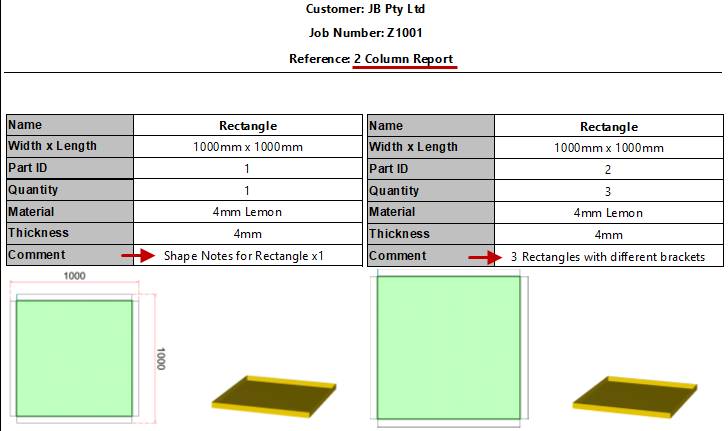
Example of Shape Notes (Column Reports)
The Job Details report lists each shape (grouped by Material), dependent on the options enabled, as explained here.
Size : Dimensions (Height by Width) with Units (mm in these examples) are as per the options set on the File Options page.
![Options [F10] > General page](ShapeMaster/Drawing%20Properties/Report03_thumb.png)
Options [F10] > General page
Note that this option does not affect the section header i.e. this will remain as Size (mm) even if the option is disabled.
Area checkbox allows for the reporting of the area per sqm i.e. 1000mm x 1050mm x 1 = 1.05 sqm
Flap Area checkbox allows for the reported area to include (as shown below) or not include the flaps.
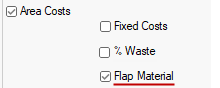
A further consideration are the options enabled on the Setup > Pricing page (shown left). For correct reporting, the applicable options must be enabled on both the Setup > Reports and Setup > Pricing pages - click on cost image below which highlights related options. See Area Pricing Tutorial.
Cost : The material cost price (per sqm) set in the Materials Manager multiplied by the Qty.
Waste is a percentage of waste per sqm and is reflected in the cost price if the % Waste is enabled on the Setup > Pricing page. For example, if a shape requires 1 sqm of material and the waste is 10% then the price is the cost for 1 sqm plus 10%.

Click to view Setup options for reporting
Result if Area Costs on the Pricing page is enabled: Area of 1 sqm x Cost of $10 = $10

Result if % Waste on the Pricing page is enabled: Area of 1 sqm x Cost of $10 plus % Waste i.e. $10 + $1 = $11.00
Price : Is the Sell price calculated using the % Markup set on the Setup > Pricing page.
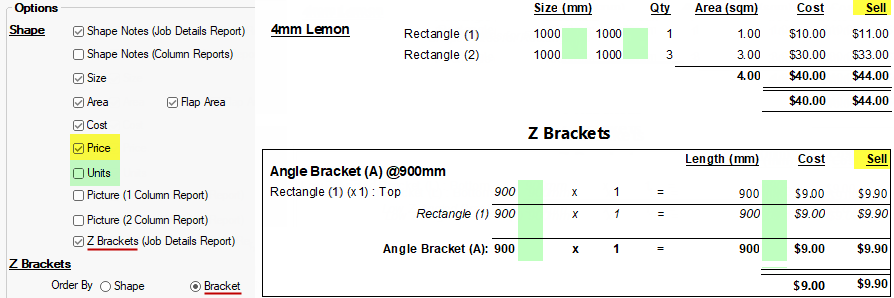
Units : Turn on/off the Length Units (as per Options F10]). The example below shows the option turned off, highlighted in green.
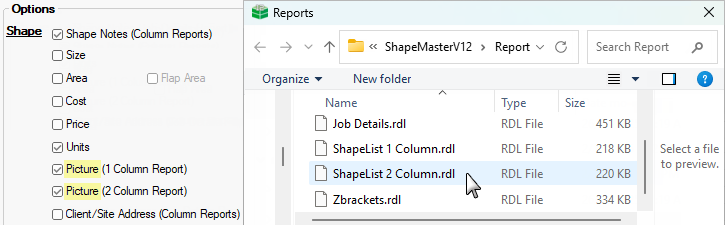
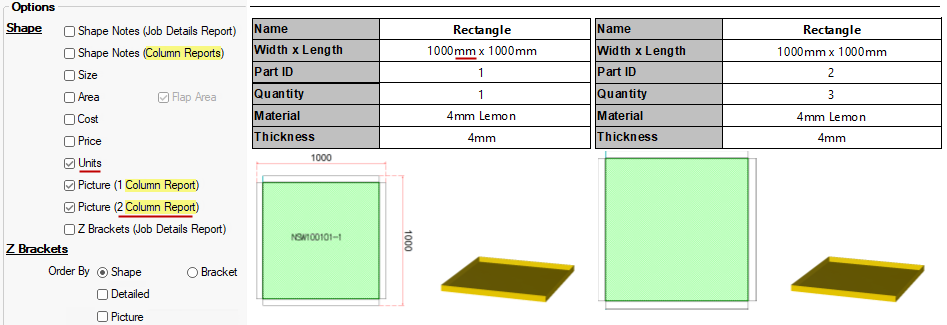
Picture (1 or 2 Column format) : Is only applicable on the Column Reports.
Example of Column Report
The Shape Options enabled below left, are the only ones that apply to Column Reports.
The Client/Site Address (Column Reports) is disabled and the Units are enabled for the following example .
Z Brackets (Job Details Report) : If enabled, will calculate the cost of specified bracket type( per meter).
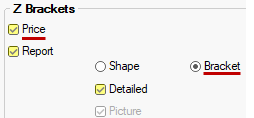
The Price checkbox on the Setup > Z Brackets page (shown left) determines if the Cost and Sell Price is calculated or not. If the Report checkbox is turned off then the Z Brackets (Job Details Report) checkbox on the Setup > Report page (shown below) will automatically be disabled (and vice versa).
NB: The Job Details Report provides details of materials used for the current job/drawing. Z Bracket reporting is optional.
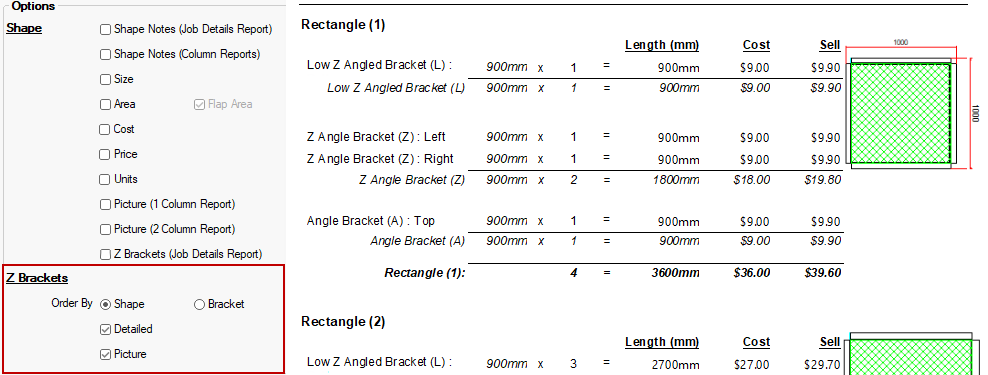
The Order By options can be used to sort by Shape or by Bracket.
- If ordered by Shape, then the report can be either a summary or Detailed - see comparisons below.
The Column Report provides details of only the shapes used in job/drawing. Notes, Units (mm) and Picture are optional.
The 2 Column Report may be preferable for jobs/drawings that have a lot of shapes, otherwise try the 1 Column Report.
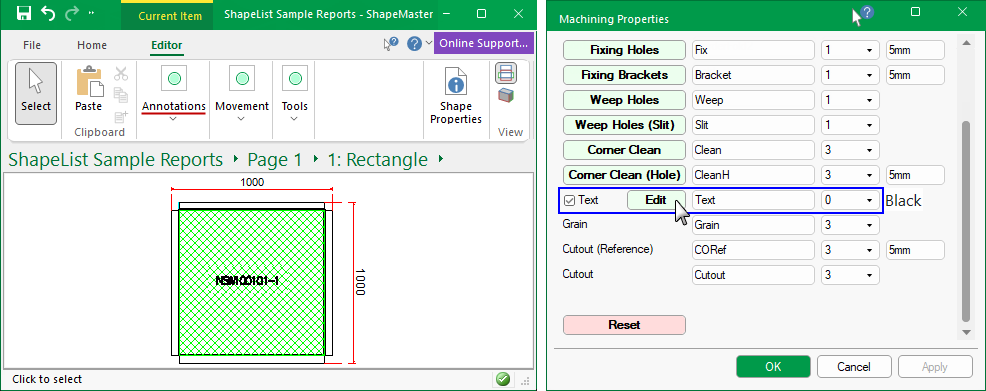
Annotations added when in Current Item Editor mode, e.g. dimensions, are also displayed on the report if Picture is enabled.
Text, if enabled in the Machining Properties of either the Shape or Drawing Properties, will also be displayed on the report.
This report can be ordered by either Shape or Bracket by using the applicable radio buttons.
If Order By Shape is selected, additional options are available i.e...
If Order By Bracket is selected, then the pictures of related shapes will not be included.
Shape Options have no effect on the Z Brackets Report but the Order By options affect both the Z Brackets Report and the Job Details Report (as discussed above).