ShapeMaster User Guide
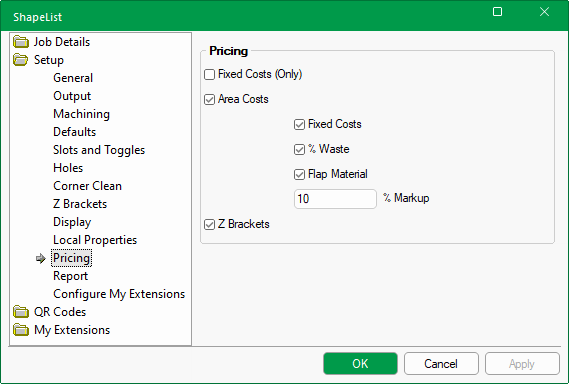
The Setup > Pricing page of the Catalog/Drawing Properties allows you to calculate pricing by...
For pricing to work and be reported on correctly, the costs of materials and brackets etc must be set correctly. Corresponding options on the Setup > Report page also need to be enabled for these calculations to be included in reports. See also Pricing Tutorial : Requirements and tutorials on Area Pricing and Fixed Cost Pricing.
It is recommended to set up Pricing defaults in the Catalog when you decide how the majority of your jobs are to be priced. The reports can then be easily customised for each job if required.
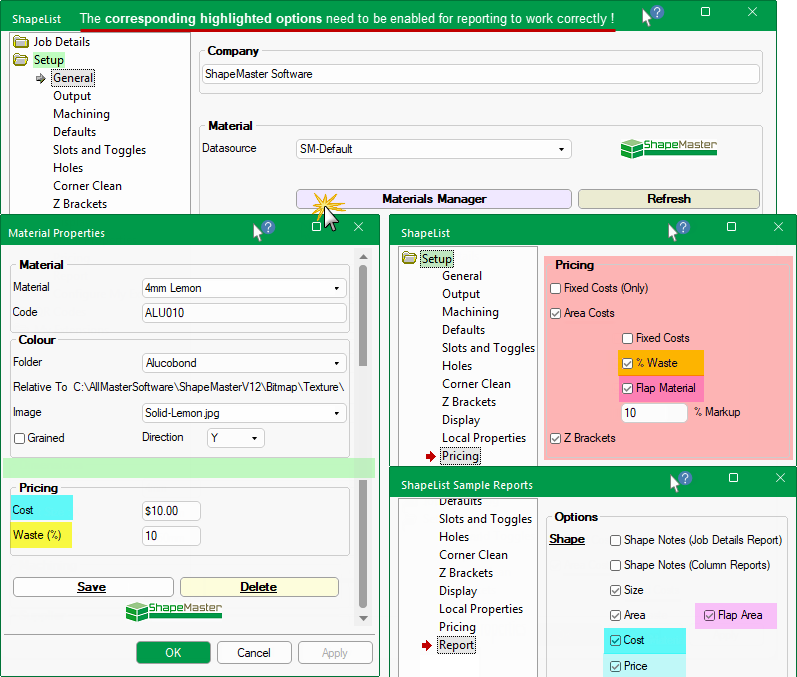
Pictorial Summary of options required to be enabled for reporting of price
Cost : (Highlighted in dark blue) Set required materials in the Materials Manager [SM-Default only] and enabled on the Setup > Report page.
Waste % : (Highlighted in yellow) will be added to the Cost. Set % in Materials Manager and enabled on the Setup > Pricing page.
Flap Material : (Highlighted in pink) Enable on Setup > Pricing and so that it will add to the Area (per sqm), enable the Flap Area on the Setup > Report page.
Sell Price : (Highlighted in light blue) Calculated using the % Markup on the Setup > Pricing page and the Setup > Report page needs the Price to be enabled.
The Use checkboxes allow you to control what is calculated for reporting.
Pricing
Enable either the Fixed Cost (Only) or the Area Costing checkbox.
Optional Pricing if Area Costs
- Include Fixed Costs - see tutorial on how to set up Fixed Pricing.
- % Waste - see topic on setting up the Materials Manager
- To report enable the corresponding option on the Setup > Report page.
- In this example, Cost/sqm is $10 plus 10% Waste i.e. Cost/sqm is $11.00
- Flap Material
- to report enable the corresponding option on the Setup > Report page.
Optional - Enable (tick) the Z Brackets check box if you want these details to be included in your Job Details report.