ShapeMaster User Guide
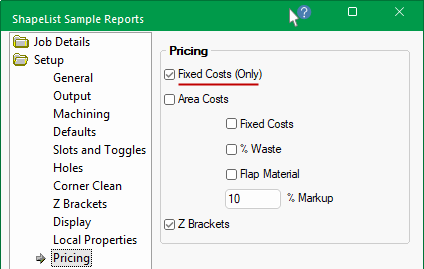
In this tutorial we will use the Fixed Cost (Only) pricing method.
The Fixed Price method is accomplished in the Library Catalog Manager. This allows you to apply a Fixed Cost to each shape.
If you wish to use a combination of Fixed Costs with Area Costs, then see the tutorial on Area Pricing.
There are two ways to create a new custom shape in the catalog.
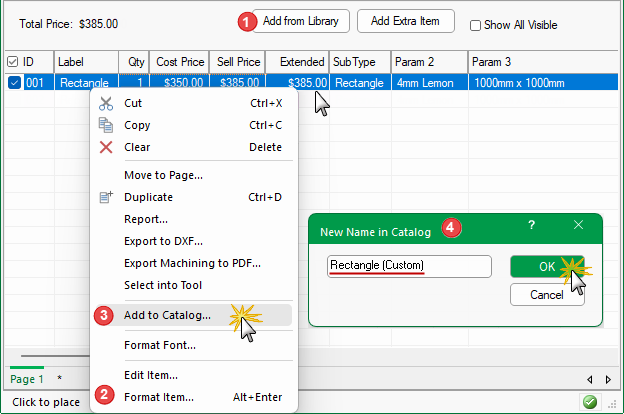
Click to Expand
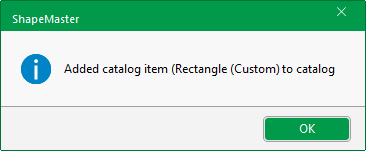
If successfully added, you will get a confirmation message. Click OK.
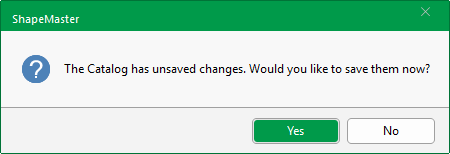
If you now open the Library Catalog Manager you will get the following message. Click Yes.
You may want to create the custom shape and then set fixed pricing at the same time in the Library Catalog Manager, saved for future use.
Columns in the library can be sorted by clicking on the headings and hide/show columns by using the right click menu on a heading.
See topic on Custom Shapes in Library Catalog Manager.
Step 1 : Open the Catalog Properties from within the Library Catalog Manager.
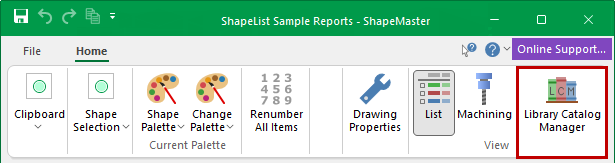
How to access Catalog Properties in LCM
Open the LCM by clicking on command button on the Home tab.
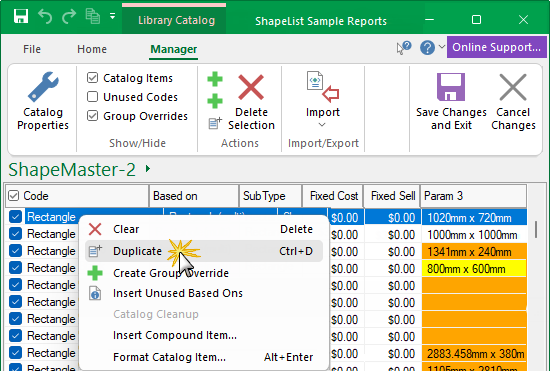
Step 2 : Now we will create a copy of a shape, so that we retain the original and customise the copy only.
Step 3 : Now you would customise the newly created Rectangle (Custom) in the Library Catalog Manager.
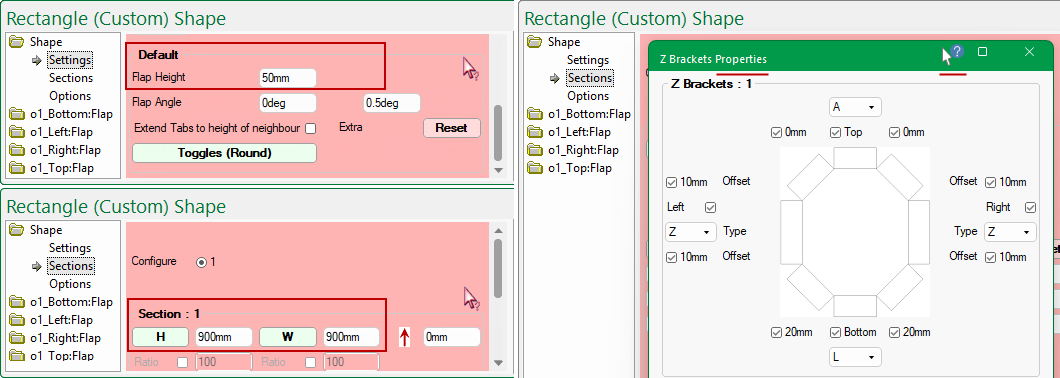
Example of customised shape settings used in this tutorial for reporting.
For the example in this tutorial, we have customised the rectangle in the Library Catalog Manager as per the following.
Remember that if you need Help with shape Pages (left) or Properties (right), you can use Context Help which is the quickest and easiest way to navigate online help.
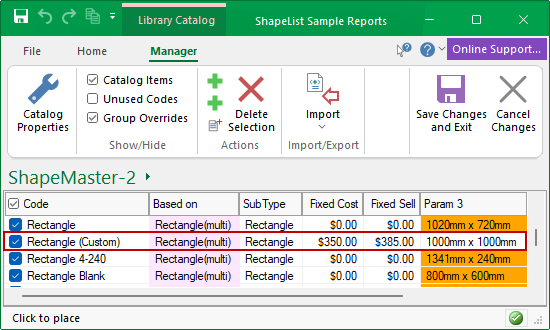
Step 4 : Set the Fixed Cost and Sell Price by simply clicking the required field and typing these in manually.
Step 5 : Save Changes and Exit from the Library Catalog Manager.
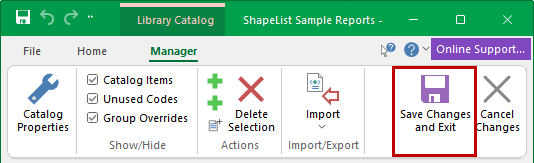
Click to Expand
Remember that changes to the Catalog only affect future drawings, so you may need to close current drawing and open a new drawing.
If you have started a new drawing, then select the shapes and 'Add from Library'. In this example, we have added...
In List View we can view the Cost and calculated Extended Sell prices of our shapes.
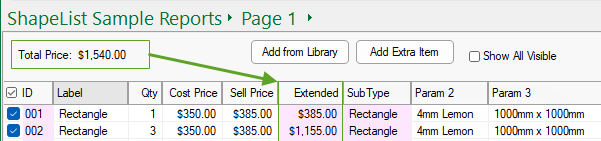
Click to Expand
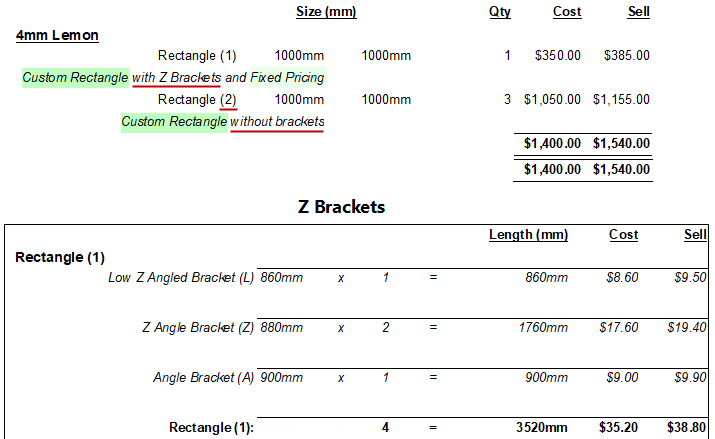
Now it is simply a case of creating a report.
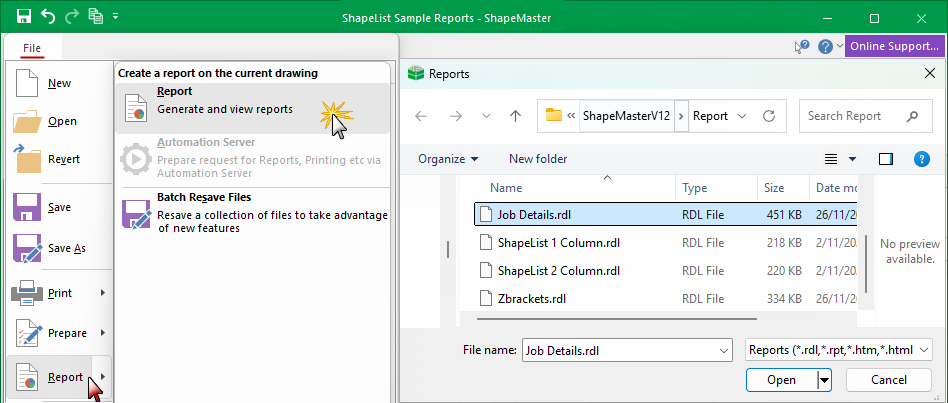
The Area(sqm) has been turned off on the Setup > Reports page, as it isn't relevant here.From the File menu, select Report > Report and then select the Job Details.rdl report - click to view.
Resulting Job Details Report