ShapeMaster User Guide
In this tutorial we will set the dimensions and pricing of the shapes so that we can easily see the pricing calculations on our resulting report.
We will then discuss how to Setup > Pricing and report by...
Area pricing is only calculated for materials and displays only on the Job Details Report.
If you are replicating this tutorial, then ensure that the defaults are set as per Pricing Requirements summarised here.
Shapes : Add four (4) rectangles with the overall dimensions of 1000mm x 1000mm i.e. Area = 1 sqm.

Click to view Shape in Current Editor mode with dimensions
Material Cost : Set the Material (4mm Lemon) in the Materials Manager to $10 per sqm.

Click to view corresponding Setup options for reporting
Sell Price : On the Setup > Pricing page set the % Markup to 10 (this will be applied to both the material and the brackets).
To price by Area, we also need to enable the Area Costs option.
For now leave Fixed Costs, % Waste and Flap Material disabled as these will be discussed later in this tutorial.
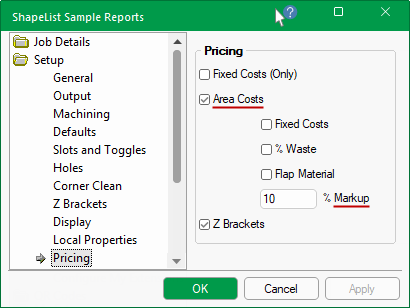
As Z Brackets is optional, we will enable pricing but disable reporting for the Job Details Report except for the last tutorial on Fixed Costs.
Job Details : These should have been set up before starting your job/drawing, especially customer information which can be reported on.
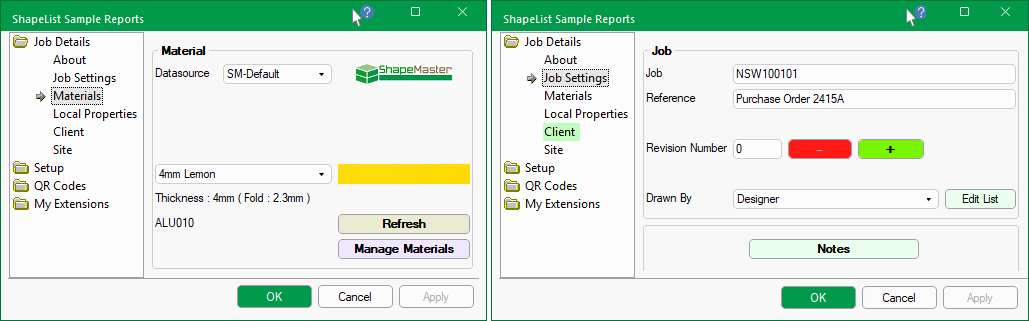
Ensure that the Job Details > Materials is set correctly. Also, in these examples the Job number and the Reference is set - click to view.
In these examples, we are using 4mm Lemon from the SM-Default datasource. A job number and customer purchase order have been allocated.
The Job Details > Client page has been set up with client address and contact details, which have an option on the Setup > Reports page to print.
Before we continue to produce the resulting report, we first need to specify the report requirements.
After each of the following four (4) examples of Area Costs pricing, we will test our results by creating a Job Details report.
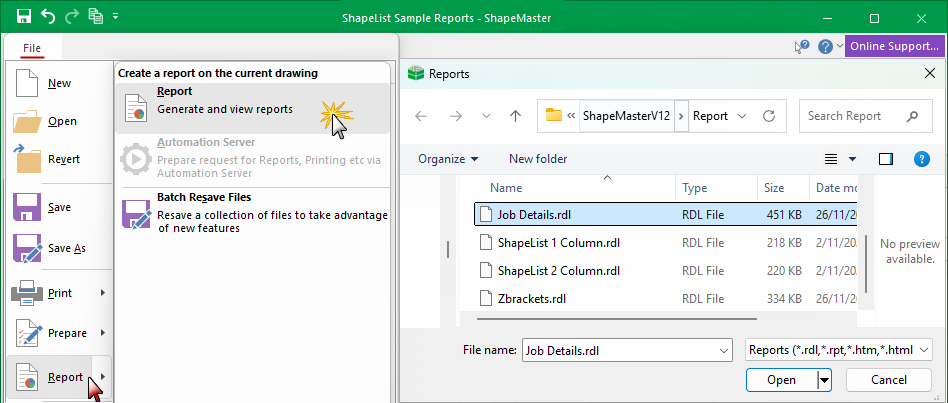
From the File menu, select Report > Report and then select the Job Details.rdl report - click to view.
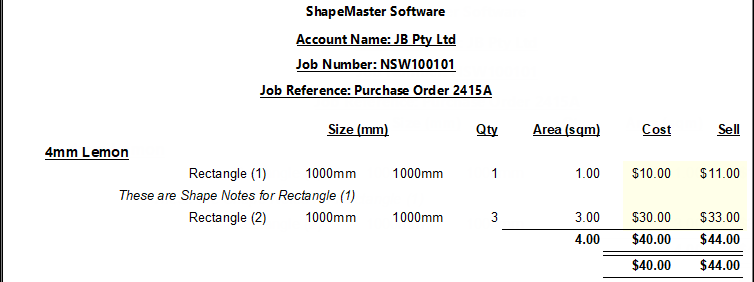
In this Job Details Report, we have only enabled Area Costs and set the % Markup to calculate the Sell price.
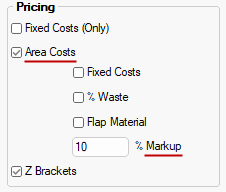
Setup > Pricing - Click to Expand
Shape Notes : Only entered for Rectangle (1).
Cost : The material cost price (per sqm) set in the Materials Manager multiplied by the Qty.
Result : Area of 3 sqm x Cost of $10 = $30 + 10% Markup = a Sell price of $33.00
Details for Z Brackets do not appear on this report because the option on the Setup > Reports page is disabled.
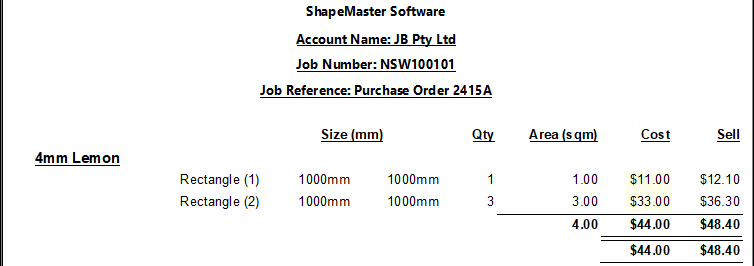
In this Job Details Report, we will enable %Waste as well as Area Costs with a 10 % Markup.
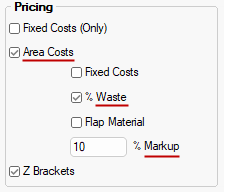
Setup > Pricing - Click to Expand
Shape Notes : All notes have been removed.
Cost : The material cost price (per sqm) set in the Materials Manager multiplied by the Qty.
Waste is a percentage of waste per sqm and is reflected in the Cost price.
*This means that if a shape requires 1 sqm of material and the waste is 10%, then the resulting Cost price is the cost for 1 sqm plus 10%.
Result : Area of 3 sqm x Cost of $10 = $30 + 10% Waste = a Cost of $33.00
The Sell price = $33 + 10% Markup = $36.30
In this Job Details Report, we will enable Flap Material as well as Area Costs with a 10 % Markup.
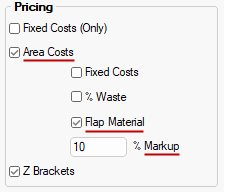
Setup > Pricing - Click to Expand
Cost : The material cost price (per sqm) set in the Materials Manager multiplied by the Qty.
Flap Material, if enabled, the Area(sqm) will include the Flap Area.
Result : Area of 1 sqm + 0.18 sqm of Flap Material = 1.18 x Cost of $10 = $11.80
The Sell price = $11.80 + 10% Markup = $12.80 [Rounding during the calculation process can cause amounts to differ by a few cents]
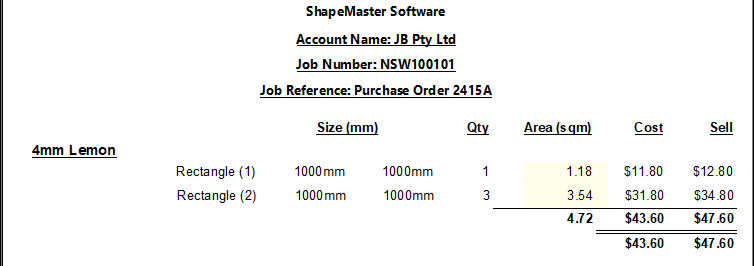
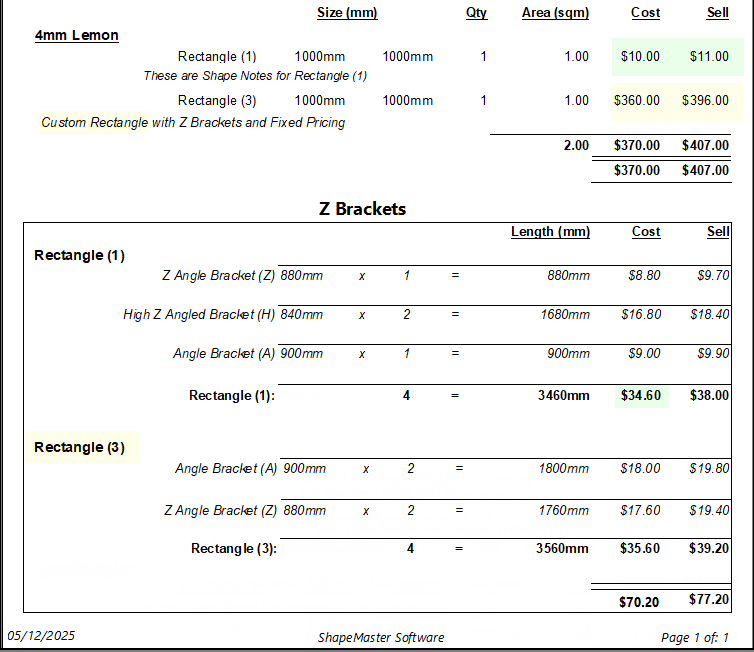
In this Job Details Report, we will add Fixed Costs to Area Costs with a 10 % Markup.
Also, we will turn on the Setup > Reports option to include Z Brackets by Shape - click on image to view options set.
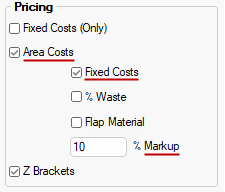
Setup > Pricing & Report pages
In a separate tutorial we created a custom shape with Fixed Pricing, which we will use for reporting here - see Fixed Pricing Tutorial.
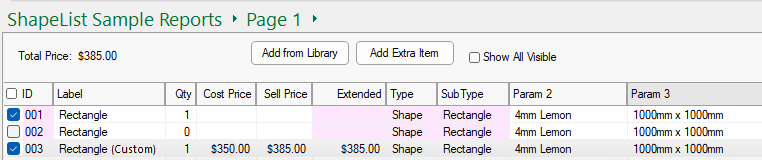
Click to view shape details of the Custom Rectangle created with Z Brackets.
Shape Notes : Entered for both activated Rectangles.
Cost : Rectangle (1) - The material cost price (per sqm) set in the Materials Manager multiplied by the Qty.
Rectangle (3) - Fixed Costs of $350 have been set for our custom rectangle. This is added to the material cost of $10/sqm i.e. $350 + $10 = $360.
Sell : Rounding during the calculation process can cause amounts to differ by a few cents.
Z Brackets can be reported separately.
Whether the Fixed Price includes Z Brackets or not, is a personal choice but note that Rectangle (1) hasn't had Fixed Pricing set, which means that the total cost price for Rectangle (1) would be Material ($10) plus Z Brackets ($34.60)