ShapeMaster User Guide
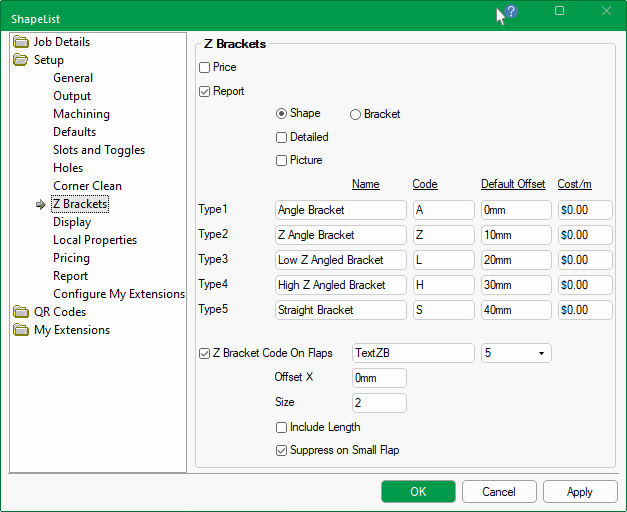
The Setup > Z Brackets page in the Drawing Properties is where up to 5 types of brackets can be set up with costing.
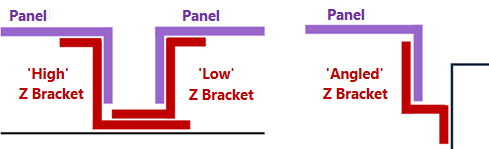
Z brackets are a popular method of securing panels to each other and the surface they cover. Several types of bracket can be used on any one job and are selected depending on the position of the panel and the bracket selected for an adjoining panel.
The brackets extend along the length of the panel and usually end shorter than its length. Their offsets from either end depend on shape and flap configuration.
Example
For a quick link to information on an option, click on the area of interest on image below.
If you wish to use pricing, it is recommended to set up Bracket defaults for costing in the Catalog. Each job can then be easily customised, if required.
Whether or not to report the brackets on the Job Details Report. If turned ON, the following options determine what you want the Job Details Report to include.
If turned OFF, this has no affect on the Z Brackets Report.Price - Tick to include the Cost pricing on the report.
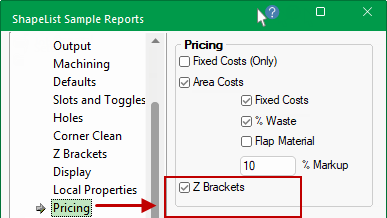
The Setup > Pricing page will automatically reflect this setting.
The % Markup will be applied to Z Brackets Cost/m resulting in a Sell price on reports.
The Z Brackets checkbox setting will be automatically reflected on the Setup > Z Brackets page (and vice versa).
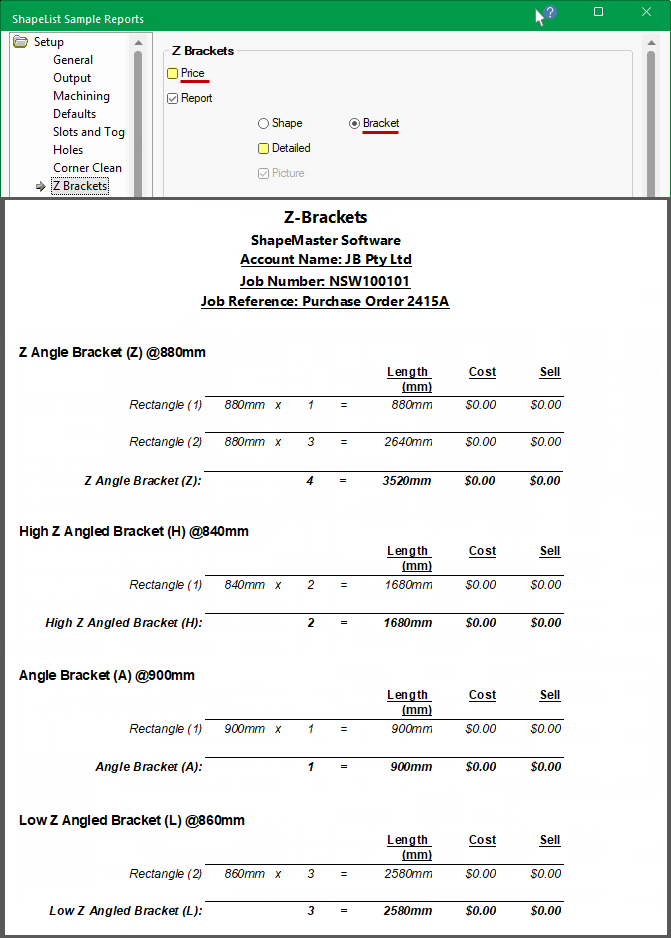
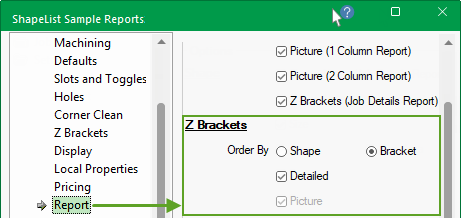
Shape/Bracket - use the radio buttons to group the report by either Shapes or Brackets.
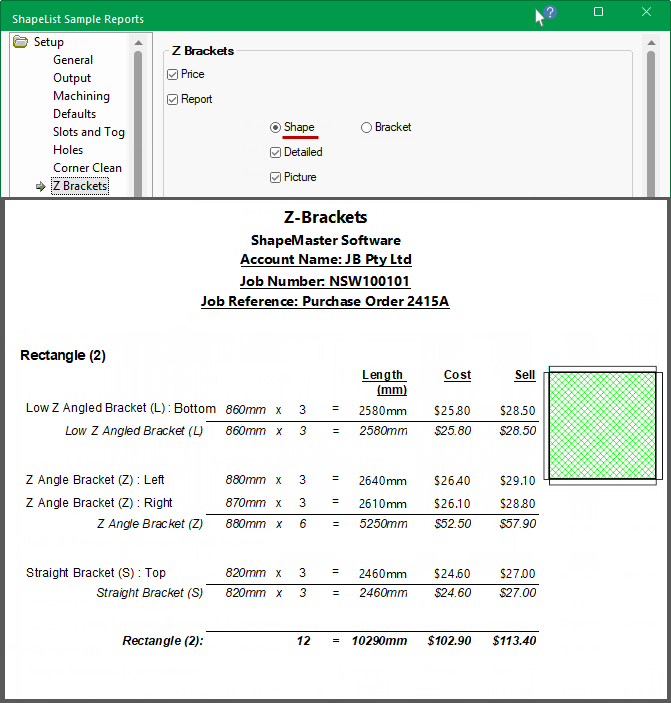
Detailed by Shape - If enabled, includes details down to each flap.
Picture by Shape - If enabled, includes a picture of the shape.
These options are repeated on the Setup > Report page
Z Brackets (Job Details Report) is optional and if disabled will not report on Z Brackets but does not affect the Z Brackets Report.
The Order by options affect both the Job Details Report (if enabled) and the Z Bracket Report.
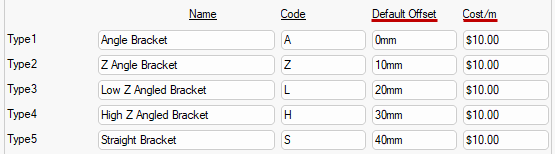
Enter the details for each bracket used...
Name - of bracket.
Code - code of bracket (this will be used to populate the Shapes Type drop list).
Default Offset - offset defaults applied for the applicable Code e.g. Z has a default of 10mm applied if enabled.
Cost/m - cost of bracket before markup (set on the Setup > Pricing page)
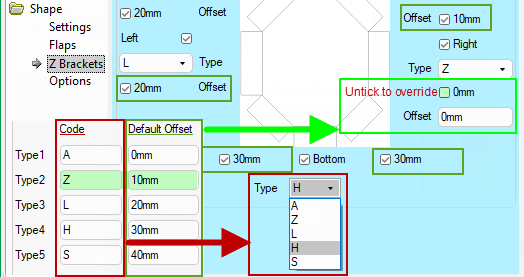
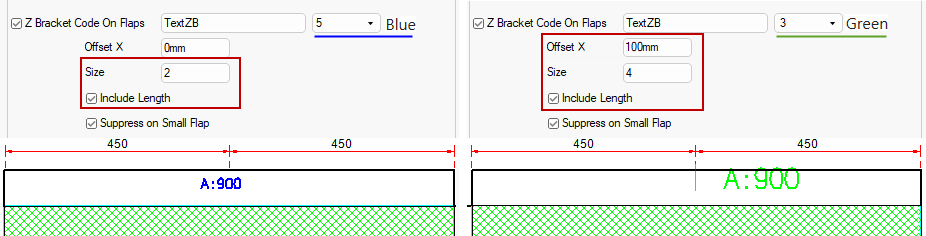
Examples of Code and Offset applied to shape - Click to Expand
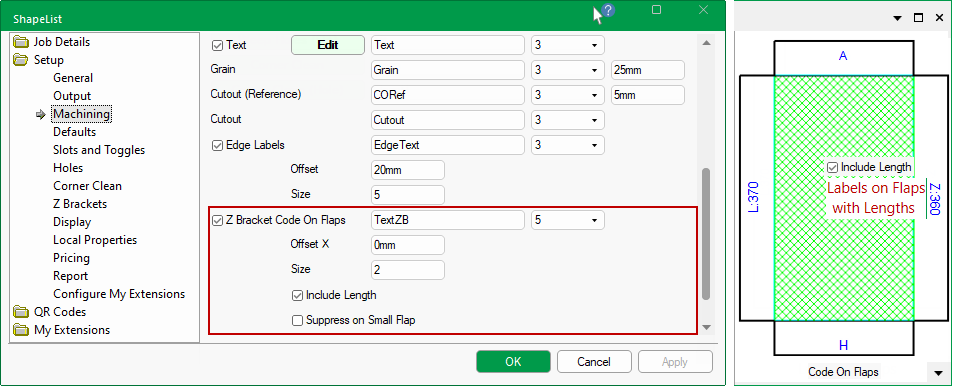
Z Bracket Code on Flaps - Tick to output the code on the flap (to be engraved/written)
Layer - DXF layer name e.g. TextZB
Colour - DXF colour of label on flaps. 0-8 can be selected from the drop list. (i.e. 5 = Blue)
Offset X - Positioning offset along the flap from its centre.
Size - Label text size.
Include Length - Include the length as well as the code on the flap.
Suppress on Small Flap - Suppress the label if the flap is deemed too small to receive it correctly.
The Setup > Report page and the Setup > Pricing page is a repeat of the report options on the Setup > Z Brackets page.
Z Brackets page : Report and Pricing options comparison - click to view
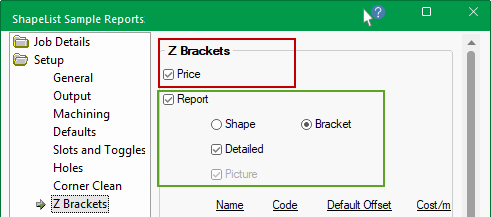
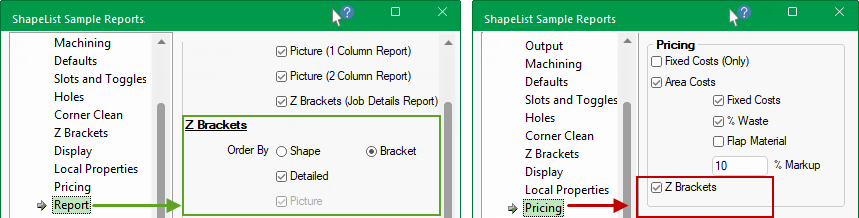
The Report page allows selected details to be included (or not) in the report.
Shape/Bracket - use the radio buttons to group the report by either Shapes or Brackets.
Detailed - Tick to include details down to each flap.
Picture - Tick to include a picture of the shape (when grouped by Shape).
The Setup > Pricing page is a repeat of the report options on the Setup > Z Brackets page discussed above.
Use - tick the Z Brackets check box to include in reports.
Pricing - tick either the Only Use Fixed Cost or the Area Costing checkbox.
Flap Area checkbox allows for the reported area not to include flaps.
Cost/Pricing is based on material area and optional fixed cost/price. There is the ability to add a fixed price to each Shape.
The following includes sample reports where the cost price for all types of brackets has been set to $10 per meter and the Default Offset values are as shown.
This means that if the length of the flap is 900mm (as in these examples), then the length of a Z Angle Bracket (Z) is 900mm - 10mm - 10mm = 880mm. If Cost is set as $10/m, the cost price of the Z Angle Bracket is $8.80.
The Job Details report contains an optional section for the Z Bracket details and is reported on after details of material pricing for the shapes included on the job.
Lengths - Z Bracket lengths do not account for any wastage.
Cost and Sell - are extended prices (taking the quantity into account).
Material Sell Price - Calculated from the Cost per sqm (set in Materials Manager) plus the % Markup (set on the Setup > Pricing page). The material price will take into account the wastage and flap material.
Job Details Report with Z Brackets pricing enabled by Shape and NO details.
Z Brackets are reported on separately after the material details for the current job.
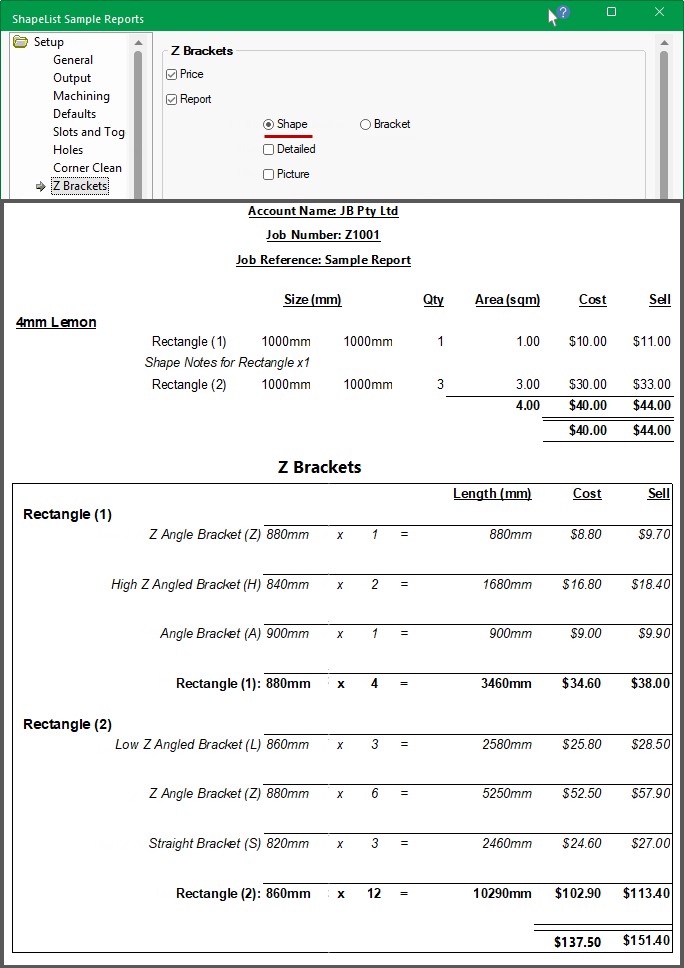
The report is similar to the Z Bracket section of the Job Details report. The following are sample reports with different options selected.
Lengths - Z Bracket lengths do not account for any wastage.
Cost and Sell - are extended prices (taking the quantity into account).
Z Bracket Sell Price - Calculated using the Cost price plus the % Markup set on the Setup > Pricing page.
Pictures - will include any added annotation or text.
The inclusion of cost and sell pricing details is dependent on the options selected but the report will always produce a result.
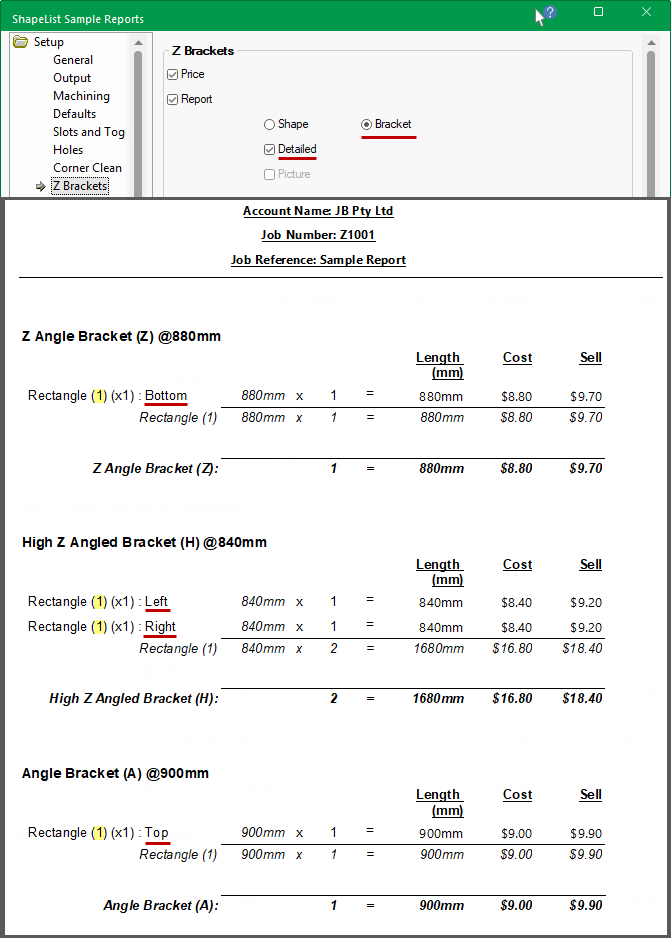
Z Bracket Report by Bracket with Pricing and Details
The Detailed report provides information about each bracket e.g. High Z Angled (H) is used on both the Left and Right flap of Rectangle (1).
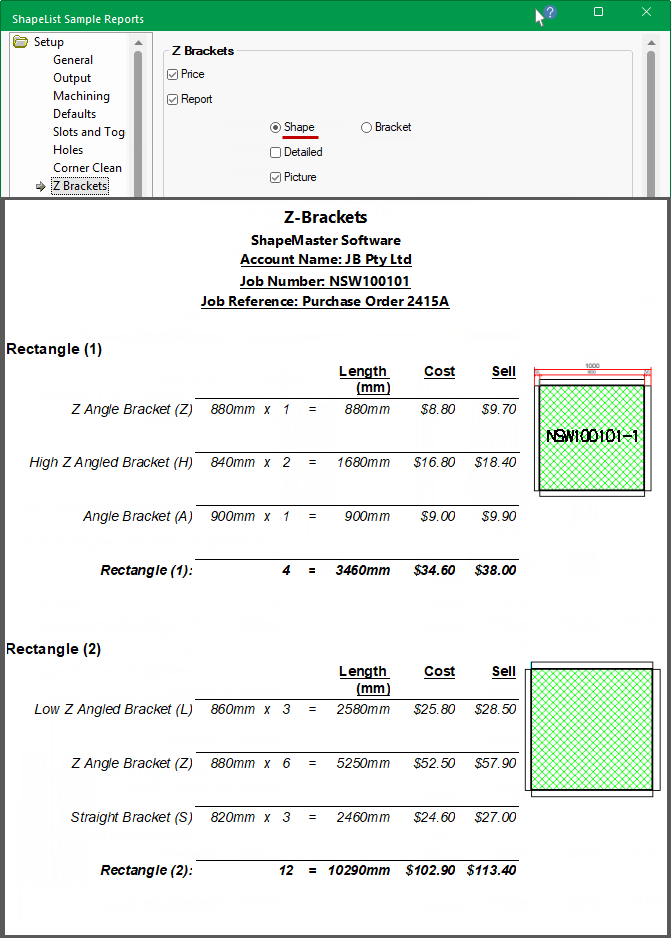
Compare this report to the next example, where no details are provided.
Report by Shape with pricing, Pictures and NO details
Annotations added when in Current Item Editor mode, e.g. dimensions, are also displayed on the report if Picture is enabled.
Text will also display, if added. Here, text has been added to Rectangle (1) only - click on image to view.
Click to view Text details set on the Shape > Options page
Report by Shape with pricing, pictures and Details
Report by Bracket with NO pricing and NO details