
ShapeMaster User Guide
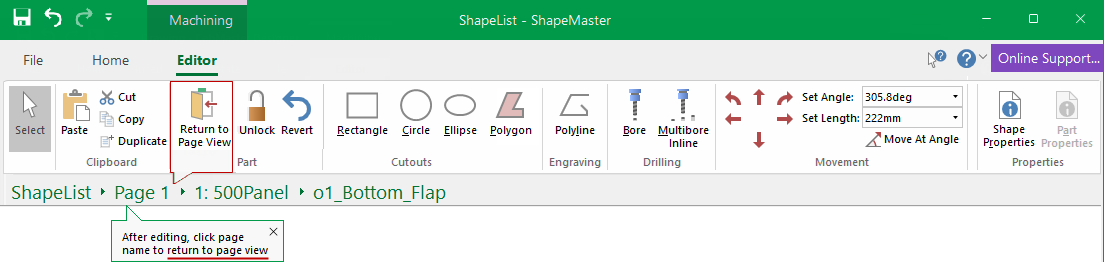 |
To locate information about any commands or tabs,  click on the area of interest on ribbon image above.
This tab is only displayed when Part Editing - click here to  Watch the Video.
Changes to the Select tool. Click on this link to Select for more details on this.
This Group of commands allows you to Cut, Copy, Duplicate and Paste.

This command exits the parts Property Inspector viewed in the main window and returns to the original page view.

Unlocking a part means getting rid of the formulas that are behind it and allowing you to override the details.
To ensure you do not accidentally modify the machining of a part, all parts are locked until specifically requested to 'Unlock' before editing can take place.

The Revert command reimports the part from its original source library, bringing back all the original formulas and recalculates all values based on the part size and other properties. The command button only becomes available when the part is unlocked.

This command lets you insert rectangles onto a part. Using the right click menu you can move, chamfer, fillet or remove corners of the rectangle if desired.

These commands lets you insert a circle or ellipse onto a drawing in the same way as a rectangle.

Use the Polygon tool where you require a closed, straight-sided figure that you cannot draw using the Rectangle tool as it lets you insert a freehand closed polygon into a drawing. Each click on the screen adds a vertex to the polygon. For example,click at three places to get a triangle.
To do this:

This command lets you insert a freehand line into a drawing in the same manner as the Polygon tool, except that it does not have to form a closed shape, being just a series of joined straight lines. Each click on the screen adds a vertex to the line.

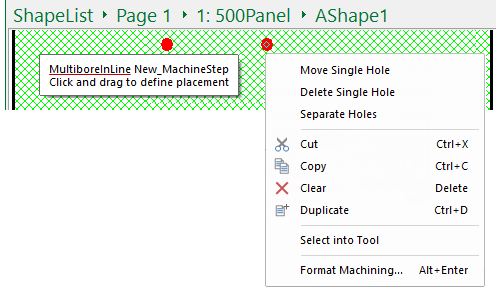
The Bore command lets you insert a single drill hole, which can be moved, duplicated or deleted using the right click menu. See discussion on Precise Movement.

The Multibore Inline command lets you insert multiple (a gang) of drill holes which can be moved, duplicated or deleted singularly, if required, using the right click menu. See discussion on Precise Movement.
This is one of the multiple ways in which you can move cutouts, drill holes etc on a selected machine part.
For full discussion, see Movement topic.
A property is a user-defined variable (or default) that every shape in the library can access.
If a command is greyed out, as per the Part Properties, then this command is not available.
For full discussion, see topic on Shape Properties.