ShapeMaster User Guide
The Machining Editor provides commands for editing a selected shape part and applied cutouts.
In this topic we will discuss...
Remember that you first need to click on the Unlock command button before you can edit.
See Tip on Machining Editor and Depth.
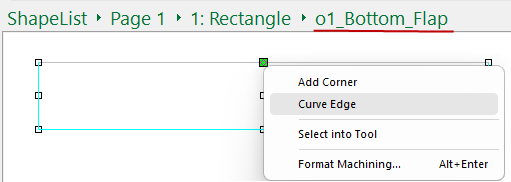
To curve edges use the right click menu option, as shown.
Click on the required part/cutout, the border will turn blue and you will see handles;
Select the centre handle (highlighted in green) and use the right click menu to select 'Curve Edge'.
Click to Expand
Then simply...
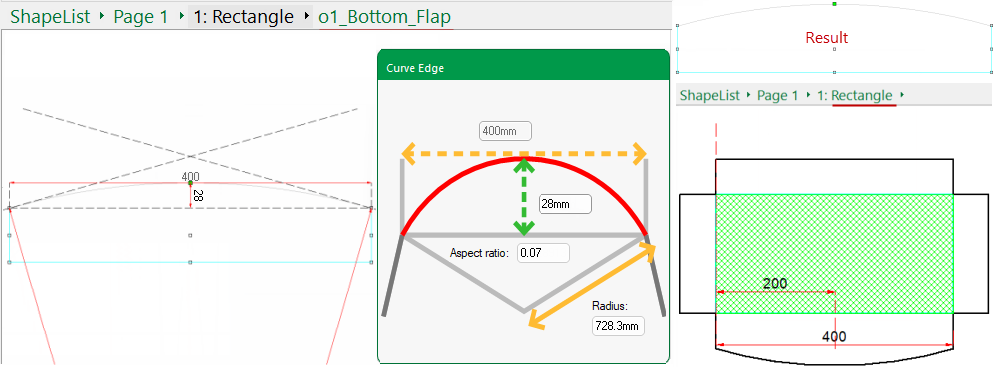
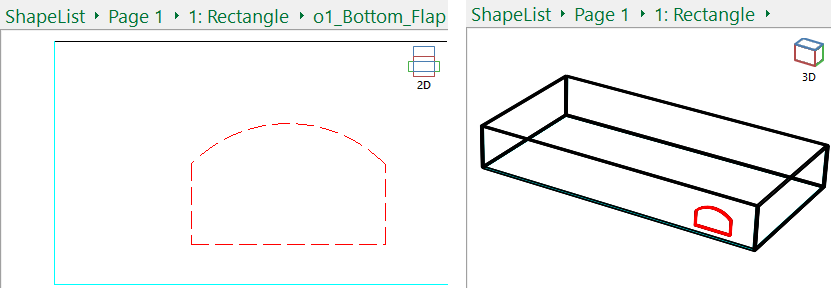
Curved Edges can be added to parts or cutouts
Here we see a Rectangle Cutout now displayed with curved edges.
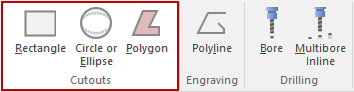
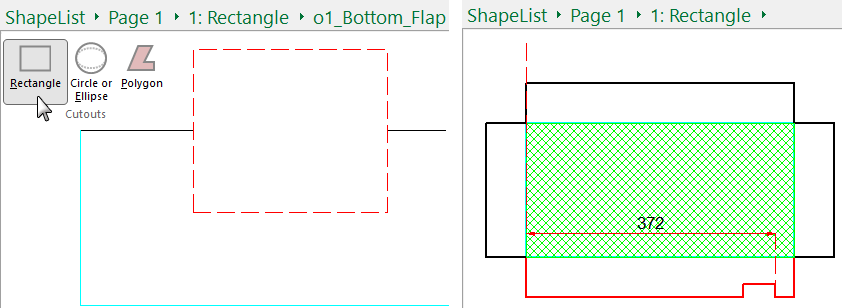
Create a notch by using the Rectangle or Circle cutout.
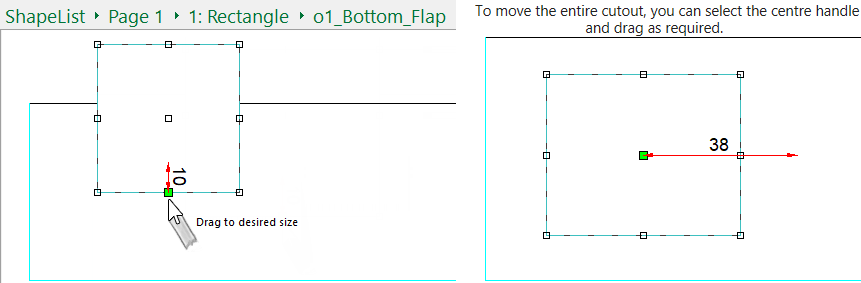
In this example, we are creating a notch on a shape using a Rectangle cutout and have zoomed in on the required area. If you want you can also turn on the Grid.
You can Move In / Out by dragging a selected point. The example shows the mid point moved out by 10mm.
To move, chamfer, fillet or remove corners use the right click menu, shown below. To chamfer the corner...
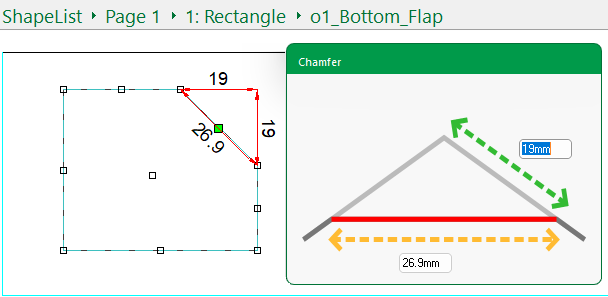
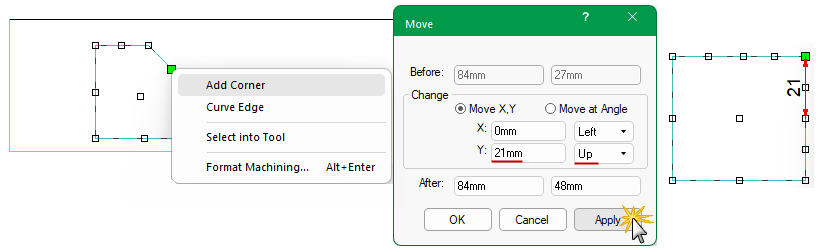
To add a corner use the right click menu option which will open a Precise Movement Input dialog.
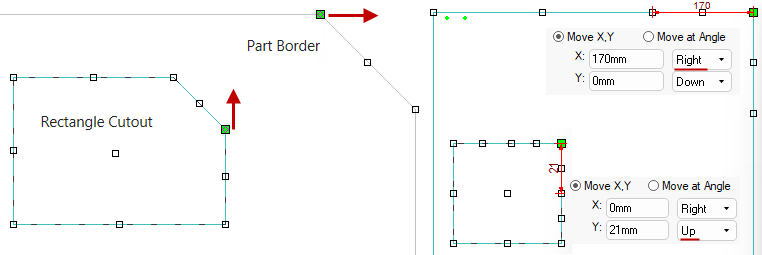
This means that we will need to know some details about the part/cutout first. Rectangle Cutout Part Border
Step 1
We need the measurements of the relevant border...
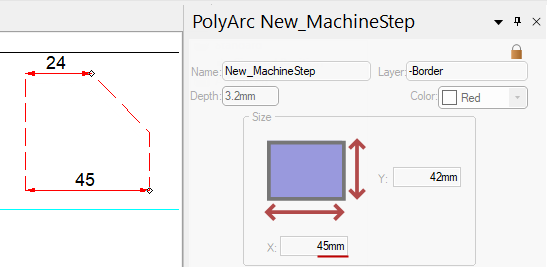
- Right click on part and select Format Machining and refer to the Size details;
- here the X dimension of the part is 45mm.
- Then measure the chamfered border which here is 24mm.
- we used the Tape Measure available on the Current Item Editor.
If you go back to the Current Item Editor and enable a dimensioning tool, it will remember it when you return to the Machining Editor. To disable, click on the Select Tool.
From this we can determine that we need to move the corner by 21mm (i.e. 45mm - 24mm).
Click to view creation of original Chamfer
Step 2
Right click on the relevant border and select Add Corner.
To input a specific dimension, just press keyboard dot
once (and let go) and a precise movement input box appears and you can input a variety of different options.
Here we are going to Move Y 21mm in the Up direction. (Ensure X:0mm) - See Note.
The direction will depend on where the snap to (green) handle occurs after the 'Add Corner' command is initiated.
Note on Handles and Direction of Movement
After you initiate the 'Add Corner' command, check out which handle will be selected for movement, as it will determine the direction you choose.
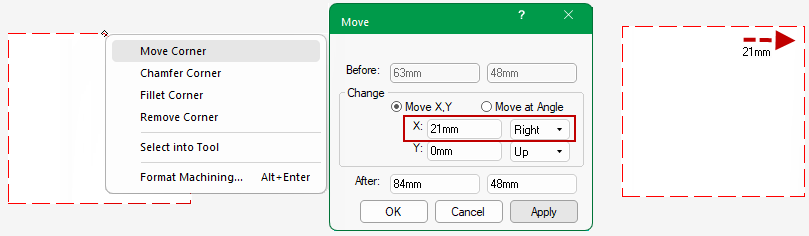
You can also use the Move Corner option, as shown. The Precision Movement Input opens automatically.