ShapeMaster User Guide
File Options is available using F10 keyboard shortcut or from the lower right of the File menu. This provides the ability to control how the gallery on the Home tab and the Shape Picker images are displayed. You can also select a different background color of your images.
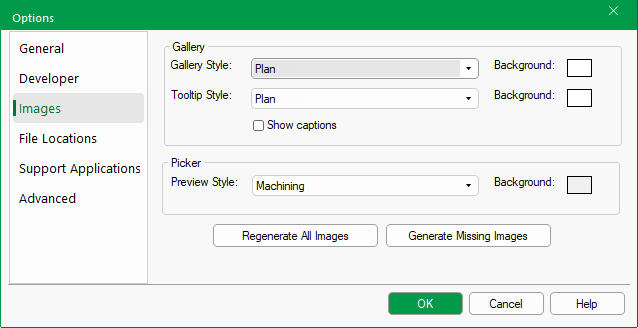 |
 Click on the area of interest on image above for quick link.
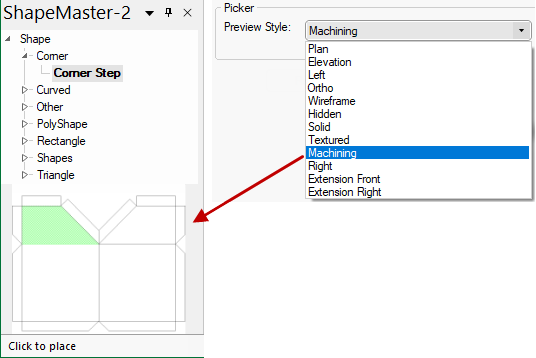
The style of the images on the Gallery and the Shape Picker can be customised by using the drop down menu.
The Style that is displayed in the Shape Gallery provided on the Home tab, can be specified with or without captions.

The Style of the Tooltip can be changed independently.
The Tooltip shown is accessed by hovering the mouse cursor over the relevant Gallery image.
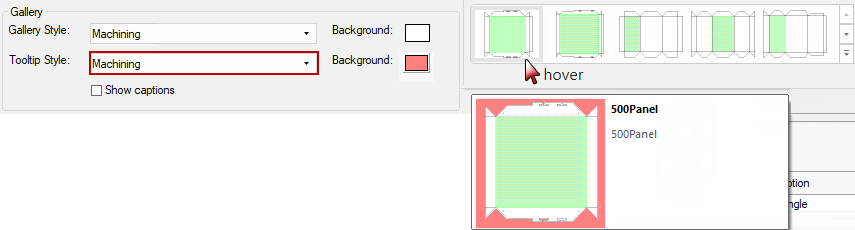
Change the colour of the background by using the Colour Select button. In the example Tooltip shown above, the background is pink.
The distribution base library (.qil) provides all with a preload of some useful palettes. However, you can save your favourite palettes for quick use in the shape gallery, and customise using a tree. When you save a custom palette as an end user, it saves in the catalog (.qim).
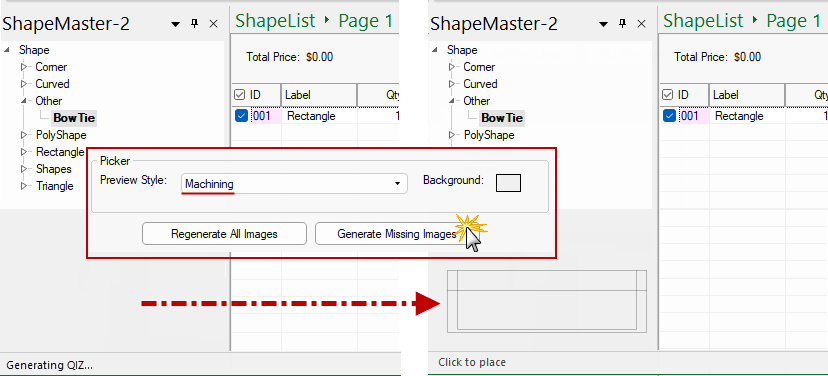
When you make changes to the palette or style, you will need to click on the  (.qiz) by clicking on the button.

You can also generate only the missing images for your palette when adding new shapes to your catalog. This makes it much faster to get back into production.
Use the  button when you need to generate only the missing images for your palette, especially when adding new shapes to your catalog.