
ShapeMaster User Guide
A preload of useful palettes are provided in the distribution 'BasedOn' library (.qil).
You can, however, save your favourite palettes for quick use in the Shape Gallery, and customise using a tree. This is useful when creating personalised shapes e.g. Square Shape etc. When you save a custom palette as an end user, it saves in the catalog (.qim).
 Watch the Video tutorial on customising the Palette for quick and easy shape selection.
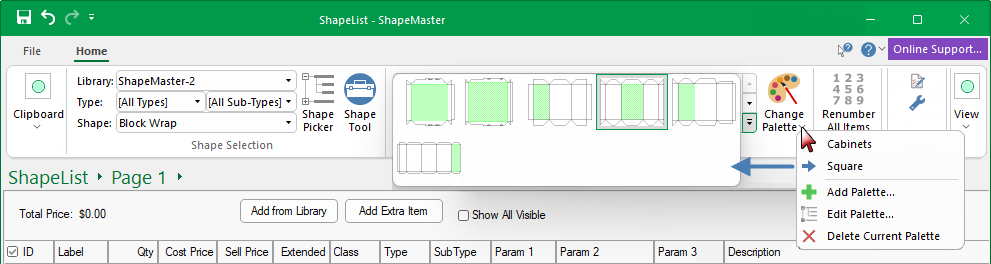
The gallery content is controlled by the Change Palette command button, used to drill down images into displaying by Type.
The idea here is that you will be able to set up unlimited custom palettes, and while you are working on some area of the design, you can quickly select the palette preconfigured to contain your favourite shapes for that area. You will also be able to add, delete, edit existing, and save as new for all of your custom palettes and these palettes will be saved in your catalog (.qim)
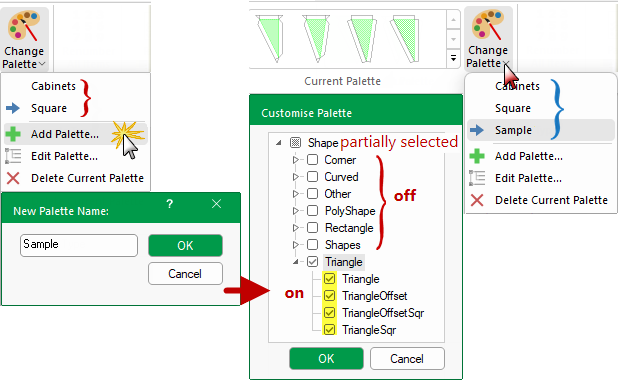
Customise and add your preference by type, as per the example below. You will interact with a tree view to edit each palette, making it easy to choose which shapes are in that palette.
Here we have added/created a 'Sample' palette which includes only the triangle shapes. The checkboxes in the tree are three-state i.e. on, off or partially selected. This lets you select and deselect subtrees of shapes for your palette.
When we Change Palette to 'Sample' the Current Palette displays only the shapes in our newly created Palette.
If you make additions/changes to the gallery, then you may need to Regenerate Images.
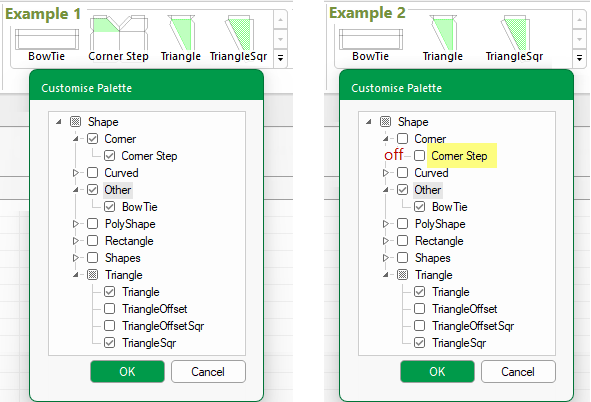
If you cannot see images after regenerating, then you need to check if the shape is turned on (as per these examples).
Allows you to change your Customise Palette selections and show, selected shapes/items.
In the Example 1, there are four shapes in the library which are all turned on and are displayed in the gallery palette.
In the Example 2, the Corner Step has been turned off and only three of the four shapes in the library are displayed in the gallery.
An image of the selected Shape will be displayed. You can add captions to describe these images by enabling Show Captions in File>Options [F10].
If you have made new shapes in your library you might find that the shapes are not visually appearing in the Palette when you have selected them or are not appearing correctly.
To fix, simply hit F10 to open File > Options and on the Images page, click the Regenerate Images button. (You also may like to enable Show Captions.)
![File > Options [F10] - Click to Expand](property-sheets/cabinet-properties/[images]/cabinet-gallery5_thumb.png)
File > Options [F10] - Click to Expand
Please be aware that this process can take a little bit of time depending on how many shapes are in your library, as all the images will be re-drawn in your library with the Gallery Style selected (click on image). It therefore maybe better to use the Generate Missing Images button to generate only the missing images for your palette, especially when adding new shapes to your catalog.
Allows you to delete selected Palette.
This video will walk you through the process of quickly customising the Palette to suit your designing needs. [4:04 mins]