
ShapeMaster User Guide
The Shape Picker command icon is located on the Home tab and can be used as an alternative to using the 4-way drop list in Shape Selection. Simply use the corresponding command button to turn its visibility On/Off. It can be resized and/or set as Floating or Docking.

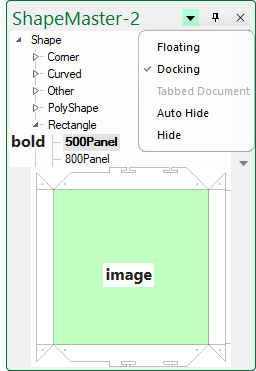
The picker is displayed in a tree view, where 'Subtrees' can be opened and closed. 'Subtrees' are arranged...
When you click on a shape name, it selects that shape into the Tool and displays an image of it at the bottom of the picker. This makes the shape selection...
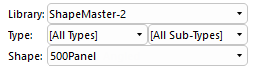
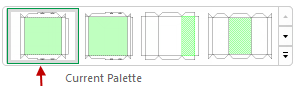
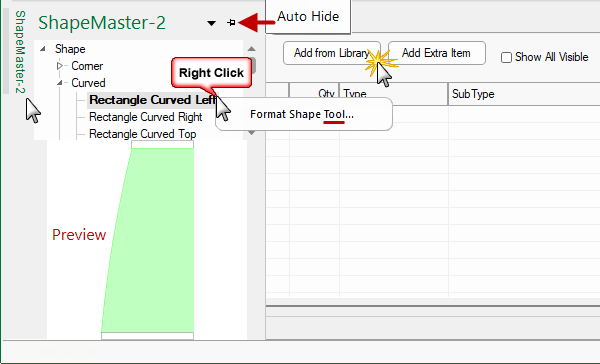
The default position is on the left in Docking mode but you can Auto Hide (in Docking mode) or Float (useful with multiple screens).
The selected shape/item can be customised before placement by :-
The Property Sheet will display with a blue background and all future placements of this shape will retain your changes.
Click to Expand
When customisation is completed, just click on the Add from Library button to place in the List.