ShapeMaster User Guide
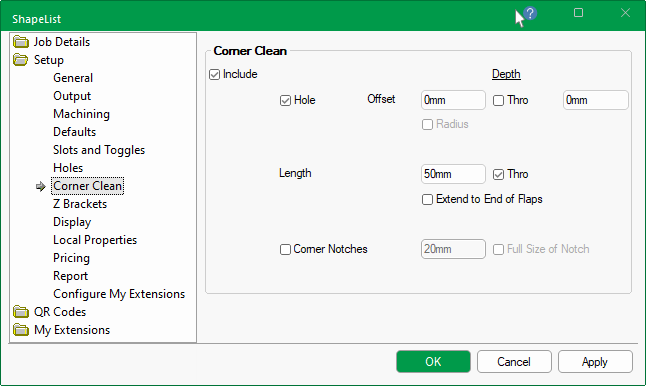
The Setup > Corner Clean page of the Catalog/Drawing Properties allows you to create a hole on each corner or add a continuous (triangular) toolpath into each corner to allow a small tool to get in and clean the corner out.
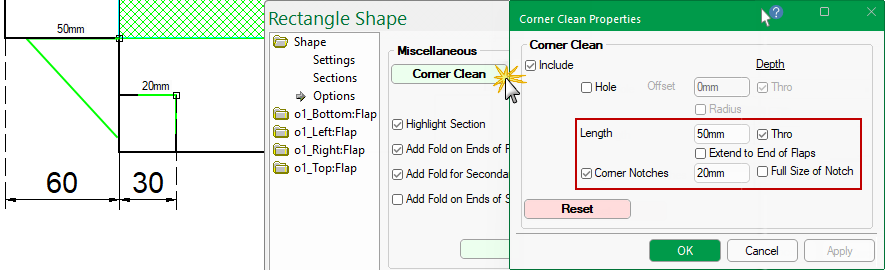
At Shape level, default Corner Clean parameters are located on the Shape > Options page and are dependent on values set here in the Drawing Properties.
Shape > Options page : Corner Clean parameters
Shape Dimensions per Section : Clean
A Clean button
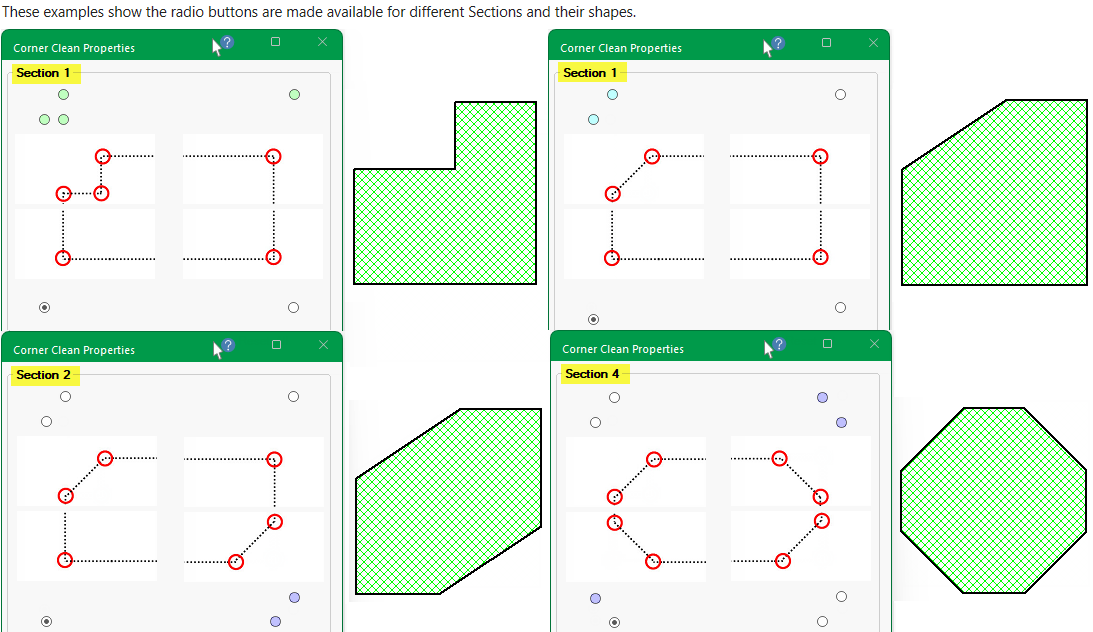
on either the Settings page or the Sections page is provided, allowing you to clean selected corners of each available Section of the shape, which is useful when a corner cutout is applied.
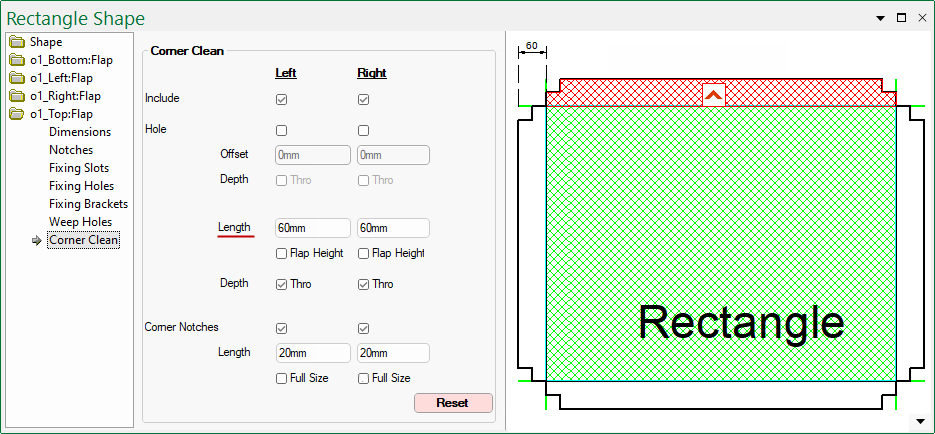
Most shapes allow you to override these settings on individual flaps, where applicable.
Flap > Corner Clean page parameters
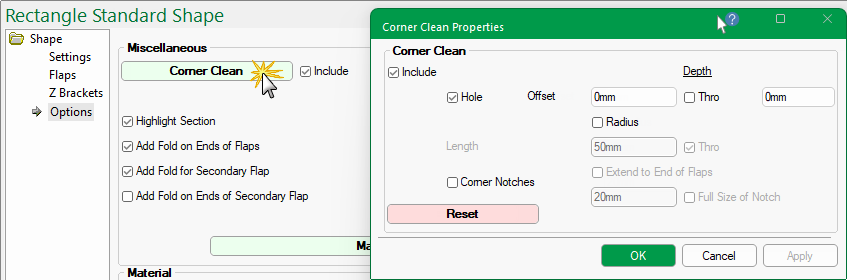
In this example, the Hole checkboxes are unticked and the Length of the corner clean is exaggerated to display as green lines. Click on image to view Machine settings.
Click to view Machining settings
Enable the Corner Clean feature by ticking the Include checkbox.
Enable a Hole by ticking the checkbox. This will create a hole on each corner by allowing a small drill tool to get in and clean the corner out.
An offset can be specified or, by ticking the Radius checkbox, the Corner Clean Hole will use the radius as the offset.
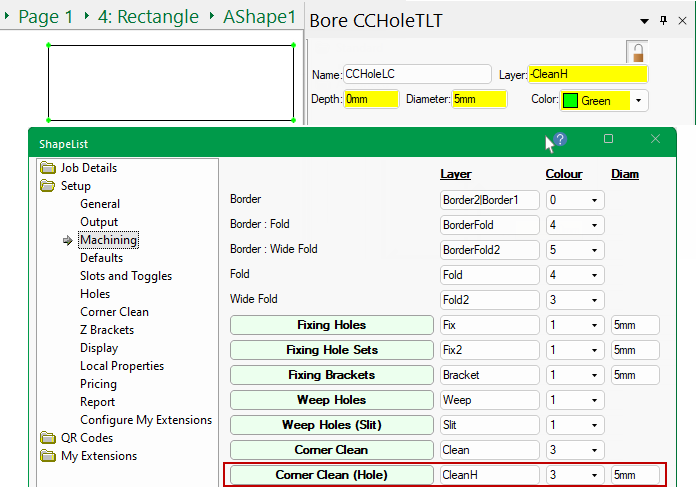
The Diameter of the Hole is set on the Setup > Machining page unless overridden at Shape level.
Example of hole and DXF Layer details
In this example, the Include and Hole checkboxes are enabled as per the Setup > Corner Clean page shown above.
The Setup > Machining page defines the Layer name as CleanH with a tool diameter of 5mm and the DXF Colour as 3 (Green)
The Depth of the toolpath can be controlled by either entering a required depth value or ticking the Thro checkbox, which automatically adjusts with the thickness of the material.
If Hole is unticked, then the corner cleanout will add a continuous (triangular) toolpath into each corner to allow a small tool to get in and clean the corner out.
The Length setting specifies the distance the toolpath continues along the edge of the shape. If the Extend to End of Flaps checkbox is ticked, then the distance will automatically adjust to the full size of flap.
The Depth of the toolpath can be controlled by either entering a required depth value or ticking the Thro checkbox, which automatically adjusts with the thickness of the material.
The Corner Notches checkbox allows separate control to turn this on/off for notches.
The Length can be designated separately or ticking the Full Size of Notch checkbox, which will automatically adjust the distance the toolpath continues along its edge to the fill size of the notch.
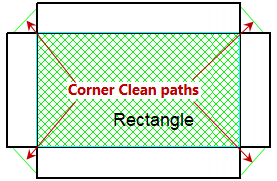
The images for the flaps showing the Corner Clean (triangular) toolpaths have been manually added for illustrative purposes only.
The corner notch (20mm) has been left as per the original screen shot taken for the Shape i.e. green lines.