ShapeMaster User Guide
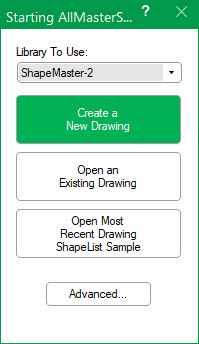
When an CabMaster Software™ application is first opened, a splash screen is presented which is a combination of...
 click on the area of interest on image above.
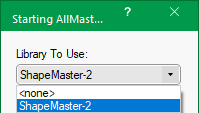
This is the library which will be initially loaded. Any new drawings created will use the Friendly Pages and shapes from the selected library, although the current library can be changed once the program has started (see the Switching Libraries FAQ).
You will usually want a library loaded, however you can choose not to load one by selecting the "<none>" option. You will find that there are no shapes or Friendly Pages when you start a new drawing. This is advisable when creating a new template. (Make sure you do not accidentally leave this option set to "<none>").
Clicking this will start ShapeMaster and create a new, blank drawing using the library you have selected from the "Library To Use" list. This is probably the most common way of starting the program.
This works exactly as if you had used the "Create a New Drawing" option, and then when ShapeMaster started, selected Open from the File menu. It displays the standard Open and Save dialog from where you can locate a drawing file to open. Note that clicking Cancel on the Open dialog will not return to the Start Up dialog, but will launch ShapeMaster and create a new drawing.
If you have worked on any drawings in ShapeMaster before, this button will include the name of the most recently edited drawing. Clicking it will start ShapeMaster with that drawing loaded, so it is effectively a shortcut for selecting "Open an Existing Drawing" and then locating the one you worked on last (similar to the Recent Documents files command on the File menu).
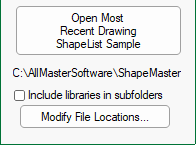
If you click the Advanced button, the dialog changes to allow for the following options...
Include libraries in subfolders
The "Library To Use" drop-down usually only includes "top-level" or full libraries. However, when developing libraries you frequently wish to open "lower-level" or sub-libraries. In this case, you can enable the "Include Subfolders" option which will display all available libraries in the drop-down list. This option is disabled by default because the additional libraries listed do not contain shapes so may confuse people who try to use them. It should only be checked by those who need to open sub-libraries for editing purposes.
Modify file locations
At the top of the newly available options after clicking Advanced, the current value of the Library folder is displayed (which is "C:\AllMasterSoftware\ShapeMaster\Library" by default). Clicking the "Modify File Locations" button opens the File Locations dialog, which allows you to change the place where ShapeMaster looks for libraries.
This will exit ShapeMaster completely, without loading the rest of the program. It is useful if you accidentally started the program, or were only checking what product and version you had.