
ShapeMaster User Guide
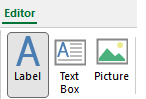
For quick links to more information, click on  the options.
This drawing tool is located on the Current Item Editor tab and can be customised with the right click Format... option.
 |
Refer Common Controls.
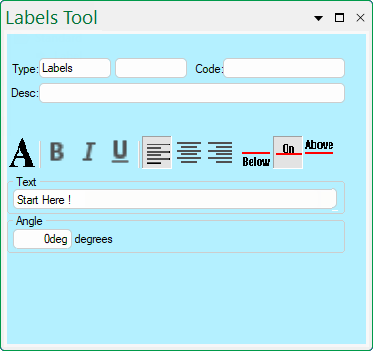
The Text edit box allows you to set the text that will be displayed and is therefore the most important control on this page. As you type into the Text box, the label will update itself if it is visible on the drawing page.

Clicking the large "A" icon opens the standard Windows font dialog, where you can set the typeface, point size, style, effects and colour of the text. There is a sample area on the font dialog where you can see how the selected options will affect the text appearance. When you close the dialog, the text in the edit box updates to reflect the selected font.

These buttons are used to turn the three style options on or off - 'Bold', 'Italic' or 'Underlined'. Each button is independent so you can use any combination of styles at once. When a button appears depressed the corresponding style is enabled. The three styles are also available from the Font dialog.

The Justification buttons control where the text of a label appears horizontally relative to its attachment point. Unlike the Style buttons, these are linked so you can only select one at a time. From left to right, the buttons select left, centre and right justification, just like in any word processing application. With a Label, this only shifts the text left and right.

The Alignment of a label is similar to the justification, except it controls the vertical position relative to the attachment point. The three buttons Below, On and Above are linked so you can only select one at a time.
This is the angle that the text appears at on the drawing, with normal horizontal text being at zero degrees. You can enter any angle in either degrees or radians, and the text will be rotated around its attachment point by that angle.