In This Topic
uses a Ribbon which is designed to help you quickly find the commands that you need to complete a task and can be customised.
For a quick link to related topics,  click on the area of interest on the image above.
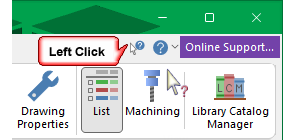
The Context Help feature can be used to locate topics on ribbon commands by simply...
- clicking on the Context Help
 button;
- the cursor will change to a question mark

- and then click on any of the ribbon commands.
There are four main parts to the Ribbon...
-
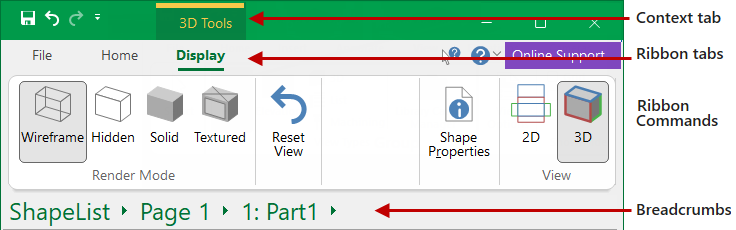
Context tabs are shown only when needed to reduce clutter. As per the example below, 3D Tools are made available only when in 3D mode.
- Context tabs, such as the 'Current Item Editor', are dependant on selections made from the Breadcrumbs Bar, which is used to navigate around shapes, parts and other items.
- Ribbon tabs sit across the top of the Ribbon. Each tab represents a type of activity which pull together all the commands you are likely to need for a required task.
- Ribbon Commands can be a button, drop list, check box or edit box where you enter information and are arranged in logical groups.
- Groups are sets of related commands collected together under tabs.
Hide/Show Commands Ribbon
The Commands Ribbon can be hidden to maximise the drawing area.
Click to Expand
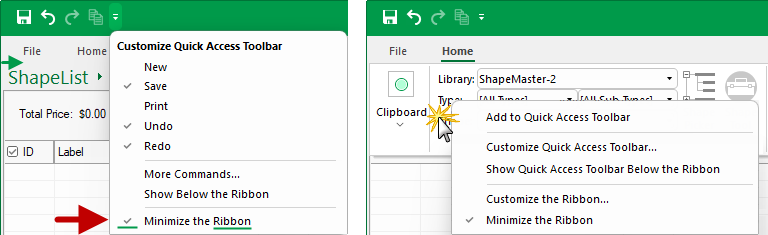
There are a number of ways to Minimize/Restore the Ribbon...
- Right click on the ribbon and use the menu shown above right; or
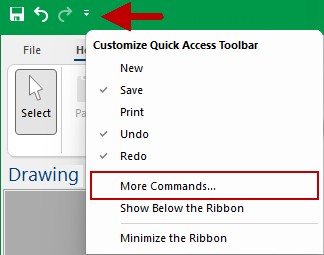
- Use the Customize Quick Access Toolbar option shown above left; or
- Double click the name of the active tab; or
- Use the Keyboard Shortcut Ctrl+F1.
The Ribbon will adapt, depending on what you are working on, to show you the commands likely needed for that task.
For example, the Context 3D Tools | Display tab is shown only when 3D View is selected. Otherwise these tabs are not visible.
To suit your requirements, you may like to:-
- Minimize the Ribbon i.e. Show/Hide commands
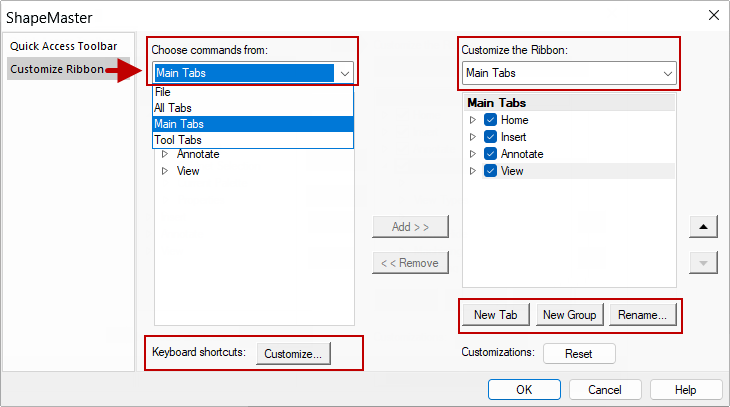
- Customise the Ribbon which allows you to create New Tabs and New Groups and even Rename tabs.
- Customise the default Keyboard Shortcuts or create your own.
To do this, from the Customise Quick Access Toolbar menu, select 'More Commands...' from the drop list.
This will open the following dialog ...