ShapeMaster User Guide
This dialog allows you to set various options about the printer used for printing drawings (plan or 3D) and reports. Many of the features on the Print Setup dialog are very similar to those on the Print dialog.
It is accessed either by selecting Print Setup or Report Print Setup from the File menu.
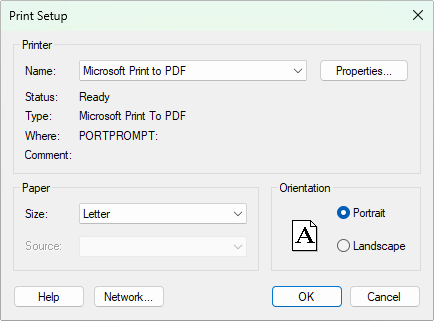 |
To locate information  click on the area of interest on image above.
If your reports and/or labels are printing at the wrong size then check the Paper selection and Orientation.
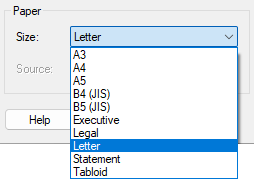
Size
The Size list allows you to select the dimensions of the page to be printer on, and includes many presets such as A4, etc. Make sure this is the same as the size of the paper you actually have loaded in the printer, because this setting determines the size of the drawing page in ShapeMaster.
Source
From the Source list you can pick which tray the printer will take the paper from if your printer has multiple input trays. Typical options include first and second trays, first available, and manual feed.
Select either Portrait or Landscape orientation - this will control which way around the image is printed onto the paper. Making a choice will change the little icon to the left and will control how the drawing page appears in ShapeMaster. The default setting is landscape because this is how plans are usually presented and it happens to fit into the drawing window better as well.