ShapeMaster User Guide
The idea of the Combined Machining ribbon is it lets you combine multiple little batches of components (parts) and nest them to prepare one combined job.

Only made available when in List View mode. See also topic on Machining Current Drawing.
To locate information about any commands or tabs,  click on the area of interest on ribbon image above.
Using this command button, or the keyboard shortcut [F8], will generate one batch of part files (DXF files) for each material used in the current drawing/job.
For more information on this command see Machining Current.
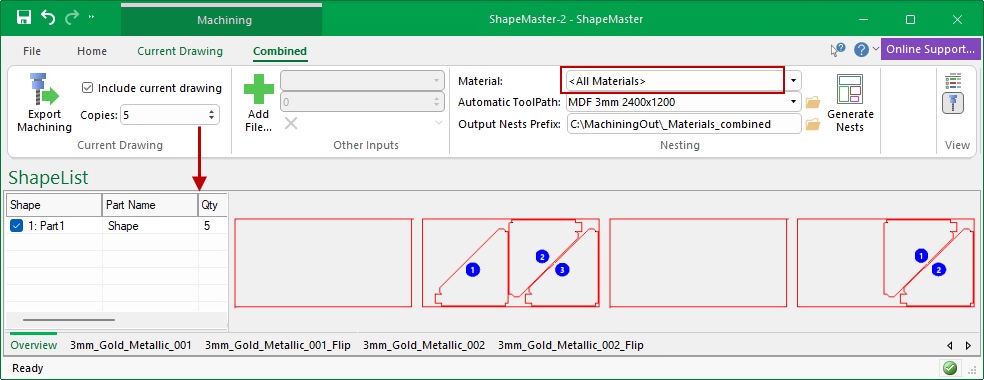
Ticking this check box will allow you to create a job which has repeats of the current job.
Specify how many repeats of parts to combine with the current job.
The Copies option allows you to create a job which has repeats of the current job. For example, if you put one shape on the screen and export its machining, you could add it to the current job 5 times with a repeat count of 5 to get all the parts needed to make 5 of these shapes. You might also have exported machining for a different group of shapes, and you could combine that with the current job as well to get one big combined job.
When you combine multiple machining exports and save the result (see Add File), you get one DXT which contains all the references to every part needed, gathered up from the individual DXT’s you have combined. Often you will want to combine the parts to be cut for a specific material. A Material drop down, therefore allows you to select from the materials present in the combined job.
In this example, we placed a single Part1 shape for Export and made five copies.
When you process a list of shapes to prepare machining output for nesting, it generates a DXT to describe the collected output files, and each part is generated into a DXF. This DXT and collection of DXFs happens once for each material, so for example there might be one output folder with the files for the carcass material and one for the doors material.
If you have a previously created collection of machining output files for one of the materials you are processing, you can combine the files with the currently generated output files and nest them all together. This could be useful, for example, if you have large sheets and two or three jobs will nest together and fit on the same sheet.
When you click on this command button, it opens the Save As dialog where you can create a file name (e.g. My Input File.dxt).
This will be added to the Input File list and you can specify the number of Copies for repeat.
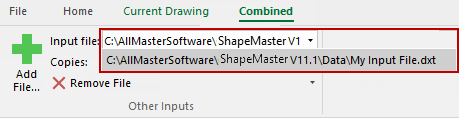
Click to view Save As dialog
See discussion on Machining View Current.