
ShapeMaster User Guide
When in 3D Display, this menu is accessed by right clicking mouse on a blank area of a drawing page - see also Current Editor.
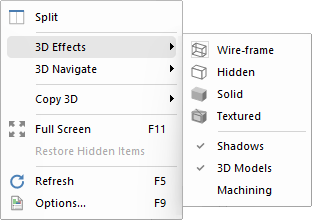 |
To locate information about any part of this menu,  click on the area of interest.
See also 3D Tools | Display ribbon commands and Generating A 3D Image tutorial.
Changes the display mode of the active pane to a three-dimensional rendered view of the drawing i.e. Wireframe, Hidden, Solid and Textured.
See Generating a 3D image tutorial
When you have one or more Light items in a drawing, each light also casts shadows by default. Since this can greatly increase the time it takes to render a 3D image, this option allows you to temporarily disable the drawing of shadows. Once you have positioned the viewpoint correctly, turn this off to render shadows. It has a similar effect to unticking the "Casts Shadows" box on each Light in the drawing.
Since some 3D Models can contain more detail than an entire drawing, they can significantly slow down movement in a 3D view if many are used. To help increase the speed in 3D, clicking this button will temporarily hide all models in the drawing. When the viewpoint is in the desired position, unselect this option to make all the models re-appear.
Turn on/off to display machining in 3D.