
ShapeMaster User Guide
As every job is billed to a customer/client, this is where you can set up Client account and Site information. These details will be displayed on reports.
The Job Setup > Client page in the Catalog/Drawing Properties is where your customer information is created and applied to the current drawing.
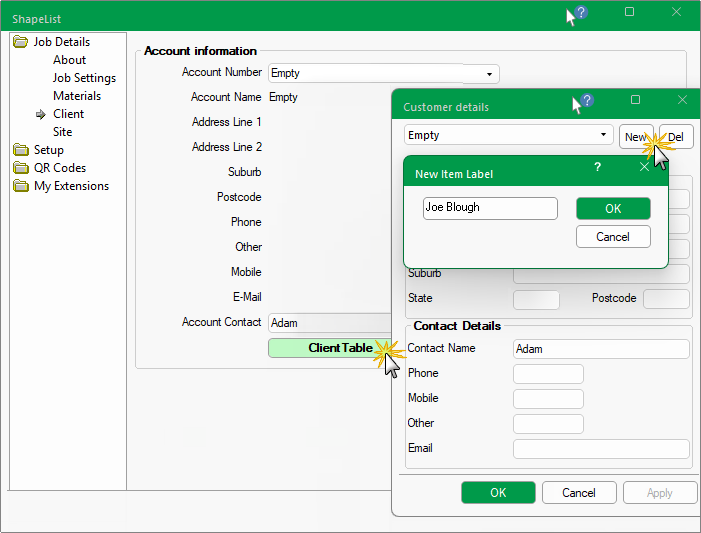
This is optional. The Account Number edit box can be manually entered (e.g. Cash Sale) or use the drop down to select from the Client table.
This must be unique irrespective if a number or a name is used as a label. The drop down uses a Client Database to prefill your customer information and grey out all following options except Account Contact. However, if you change your mind and decide to manually enter, just blank out this field and all fields will be again made available for entry.
If you want to amend Customer Details, you will need to use the Client Table button to access the relevant details.
Example
Account Number naming convention is totally up to you, as long as it is unique.
Name of customer or company to bill the current job/drawing to.
Billing address. Phone, Mobile, E-Mail or Other.
Name of the customer or other contact associated with the job/drawing.
The
button opens a which is used to modify the Customer Details i.e. it allows you to:-
The Refresh Table button should be used after the Client Table is amended.
The Job Setup > Site page in the Catalog/Drawing Properties is where your customer site information, if applicable, can be entered and applied to the current drawing.

The address and contact details pertaining to the site can be:-
- made the same as details set on Client page by ticking the checkbox.
or- set to a different address and contact details by unticking the checkbox and entering new details.

